<img height="1" width="1" style="display:none" src="https://www.facebook.com/tr?id=1375001637486124&amp;ev=PageView&amp;noscript=1"> Skip to content
Avanzia Consulting
HubSpot CMS module

Blog Listing Duo

Two blog layouts in one HubSpot module: Contained Cards and Editorial Grid. Category and author dropdowns that open your real blog pages, search, previous / next buttons, and one simple editor panel.

By Avanzia Consulting SRLTwo layoutsBlog listing templates and any page

Why use it

Two distinct blog layouts. One intuitive editing experience.

Two layouts, one module

Choose Contained Cards or Editorial Grid in the module settings. Your blog, columns and options stay when you switch.


Filters that stay light

Category and author dropdowns open your blog's own tag and author pages. No script downloads the other pages of your blog.

Simple to edit

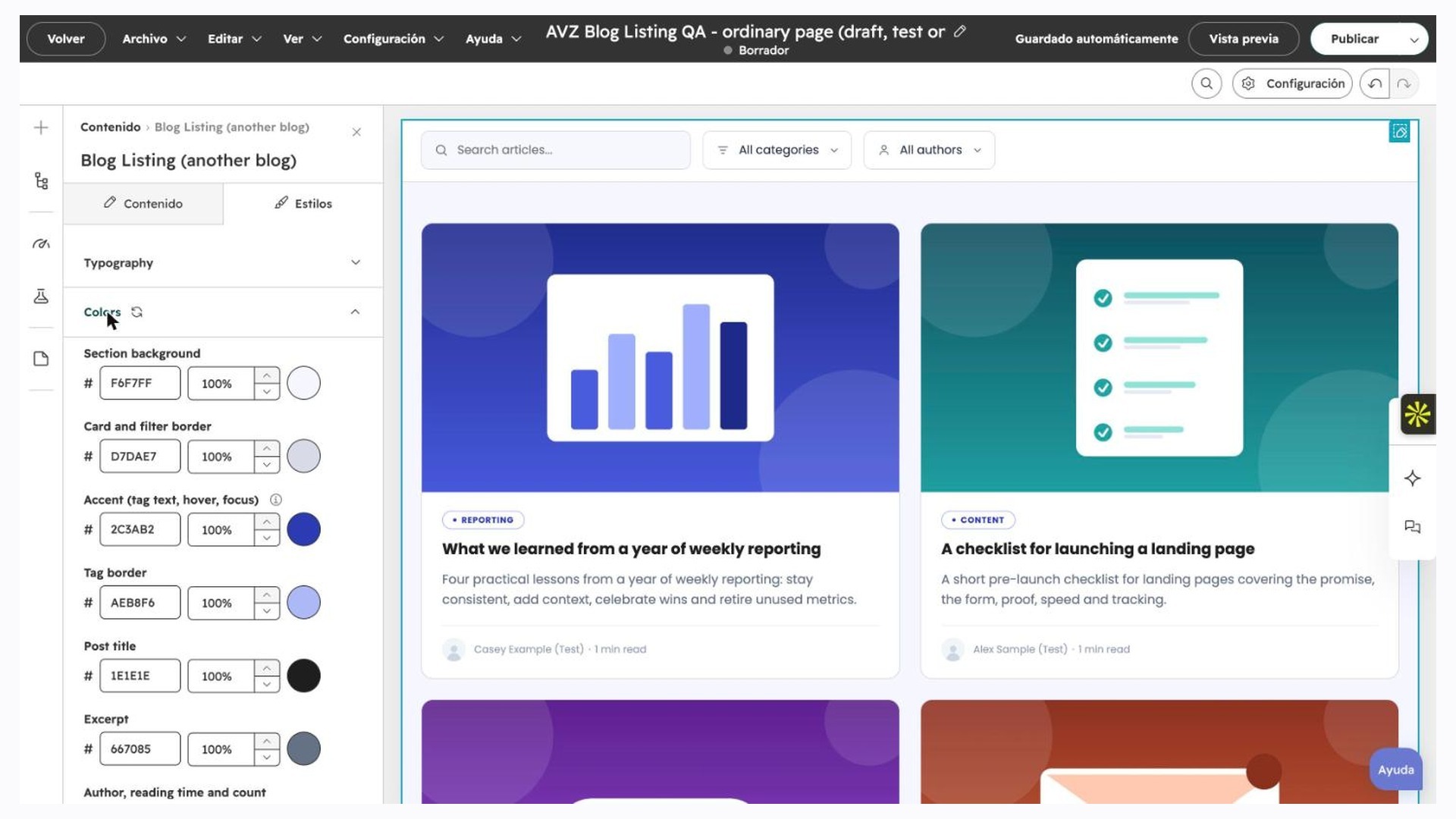
Layout, blog, columns and what each card shows are in one panel. Colors, fonts and spacing are in the Styles tab. No code.

Follows your theme

The accent follows your theme's primary color and Editorial Grid titles follow your theme's heading font, unless you choose your own.

Works where you need it

Use it in a blog listing template, or on any page with the option to choose a blog and show its latest posts.

Clear on every screen

One link per post, labelled filters, visible keyboard focus and layouts that adapt to tablets and phones.

See both layouts running

The two examples below are the real Blog Listing Duo module running on this page, set to show the latest posts of a HubSpot blog. They are not mock-ups.

Demo Content: the posts, authors and images in these examples are fictional and were created only for this demo. They are not Avanzia articles. Filters and search open pages of that demo blog and of this site.

Example 1 · Contained Cards

Bordered cards, a full-width filter bar and 16:9 images. Real module, real posts of a demo blog.

Strategy

When to say no to a feature request

A respectful way to decline feature requests: understand the problem, check your goals and offer a useful alternative.


Riley Demo 1 min read

Example 2 · Editorial Grid

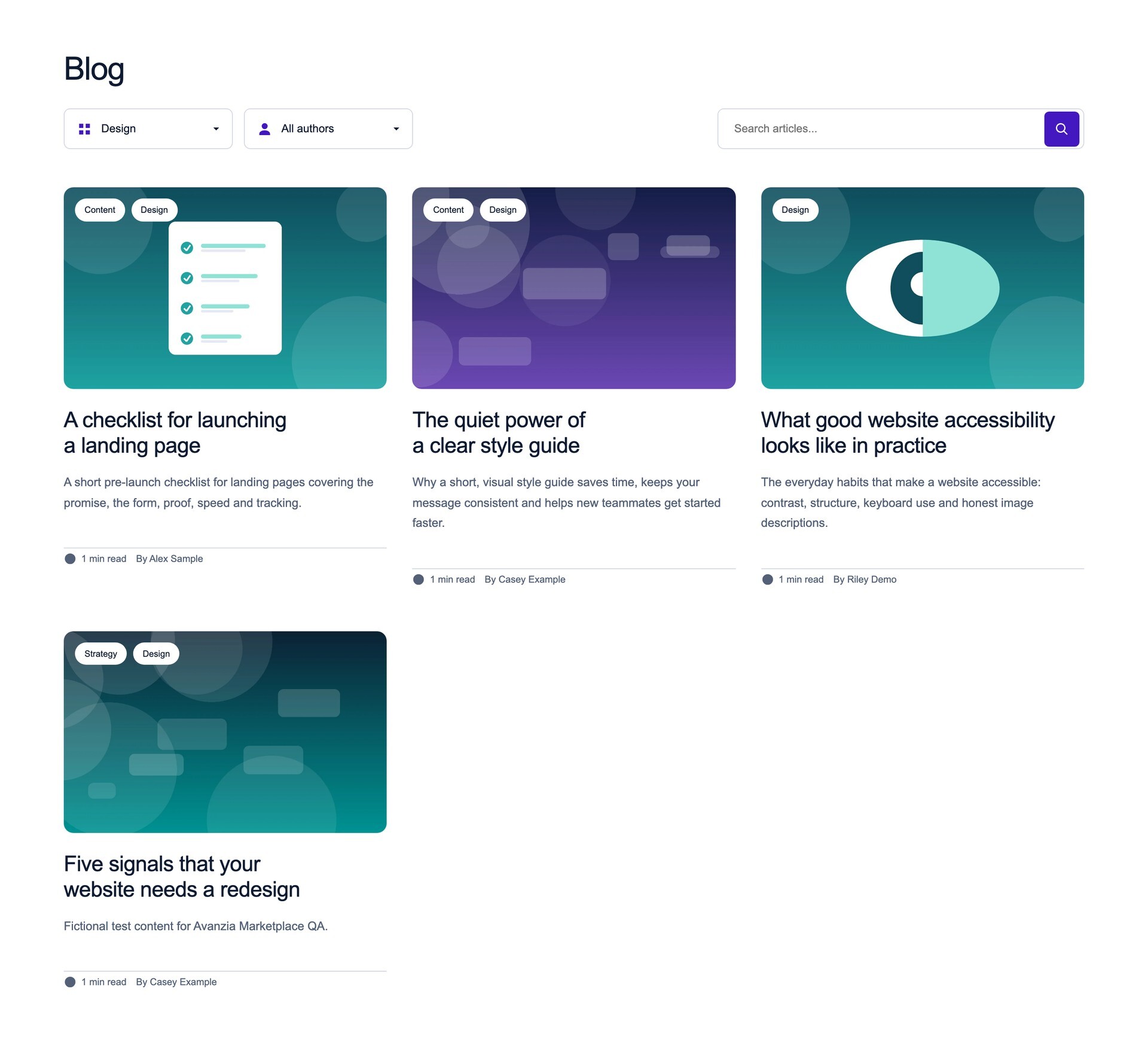
Open cards, large rounded images and up to two tags over each image. Same module, different layout.

Blog

StrategyCulture

When to say no to a feature request

A respectful way to decline feature requests: understand the problem, check your goals and offer a useful alternative.

1 min read By Riley Demo

Features

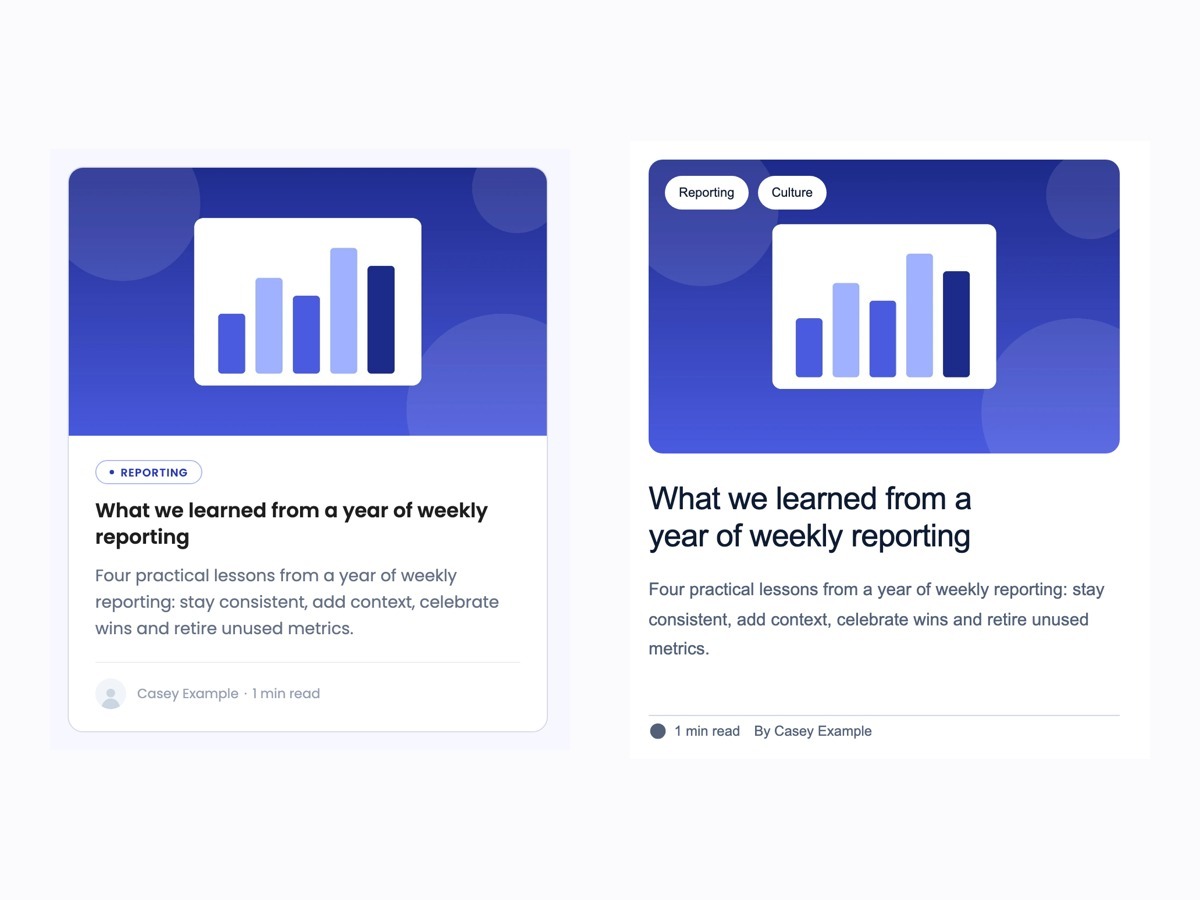
A Contained Cards post card next to an Editorial Grid post card.

Two Distinct Layouts

Contained Cards with bordered cards and a full-width filter bar, or Editorial Grid with open cards and large rounded images.
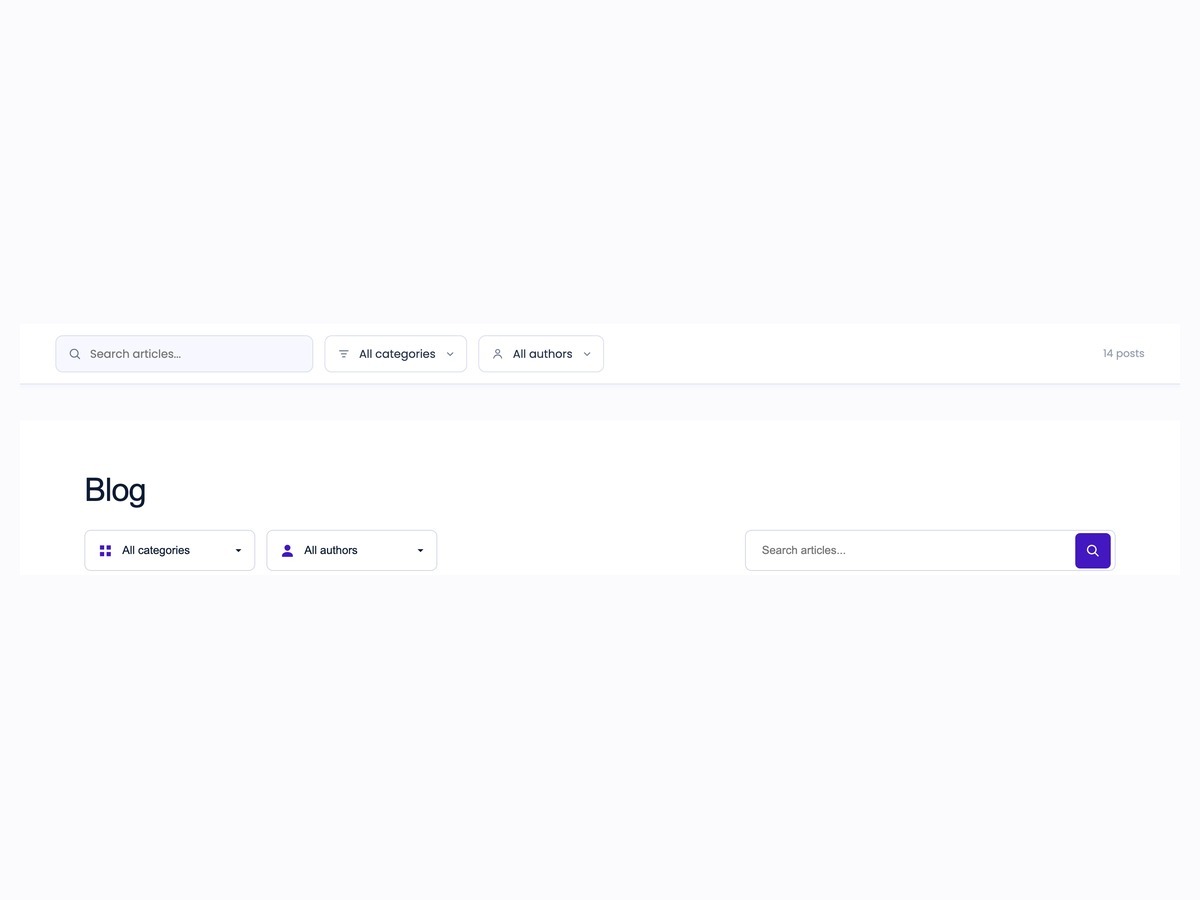
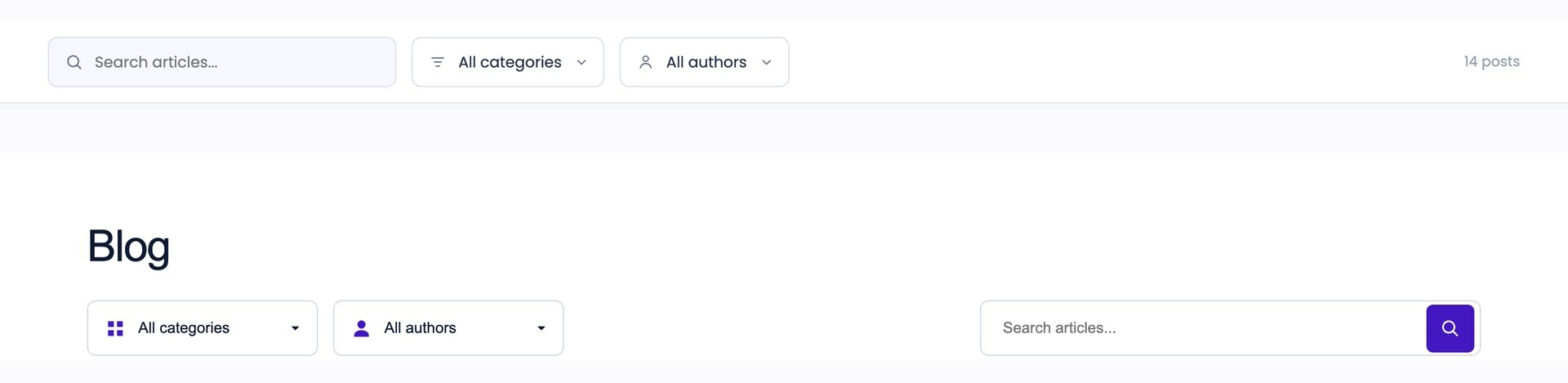
The filter bar of Contained Cards and the filter row of Editorial Grid.

Category and Author Filters

Dropdowns that open your blog's real tag and author pages, plus a search box that opens your site search results.
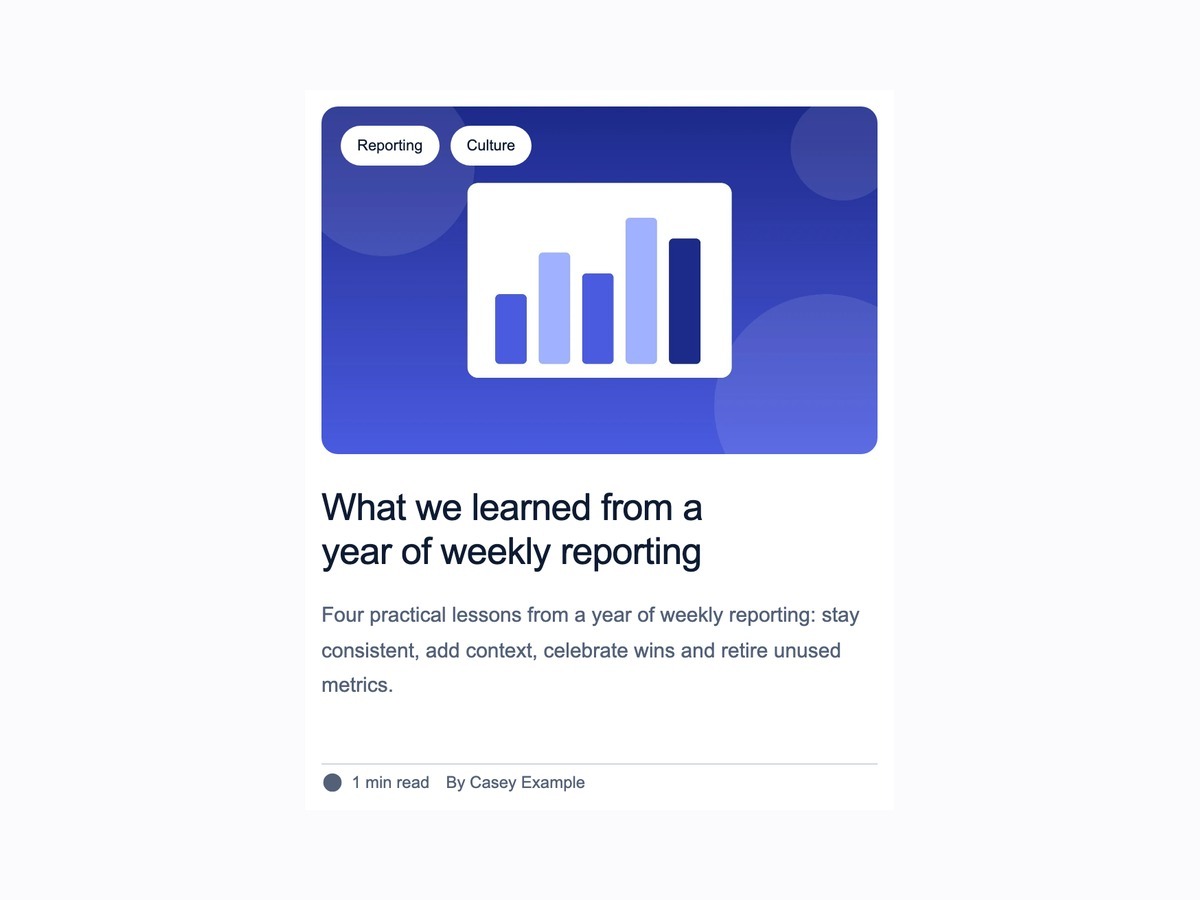
An Editorial Grid card with two tags over a rounded image, title, excerpt, reading time and author.

Editorial Tags and Details

Up to two category tags over the image, an editorial title, an excerpt, reading time and author. Each element can be turned off.
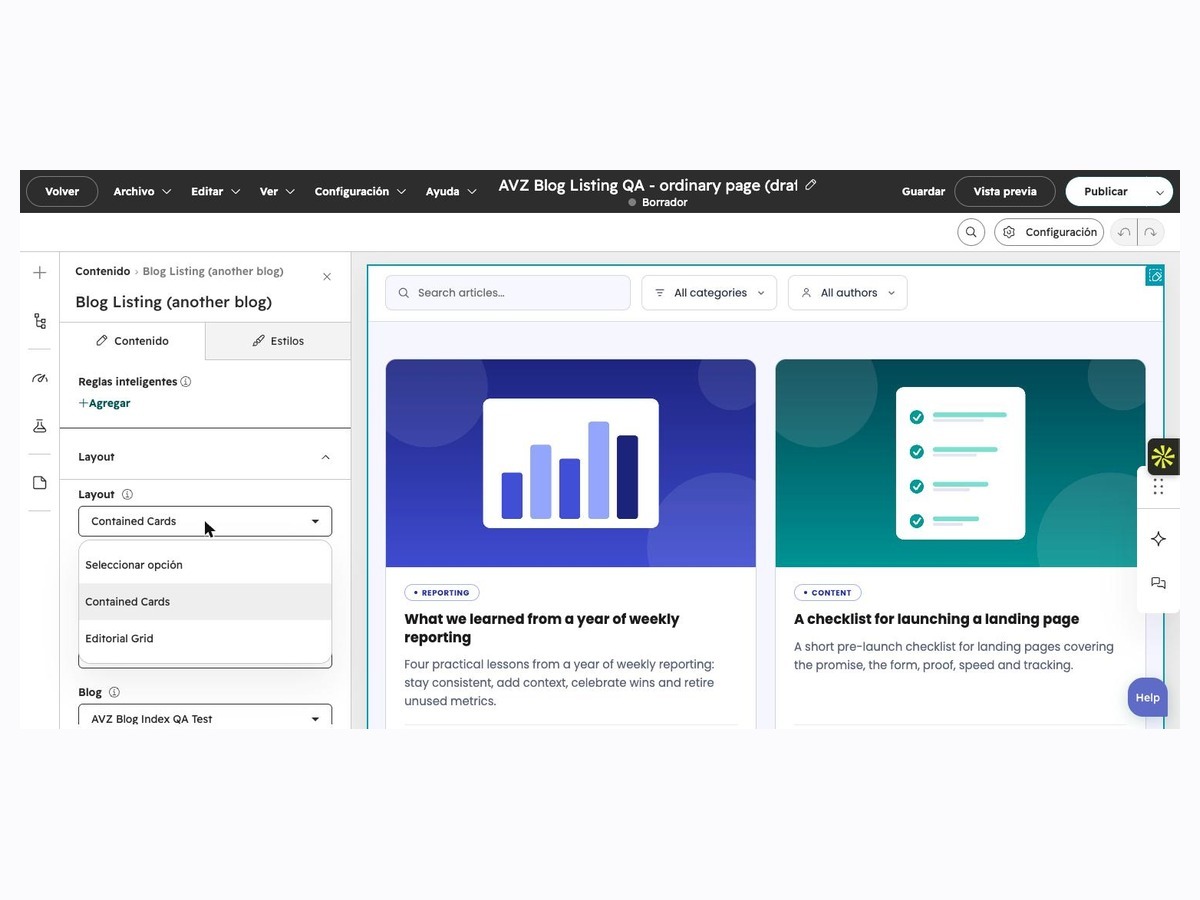
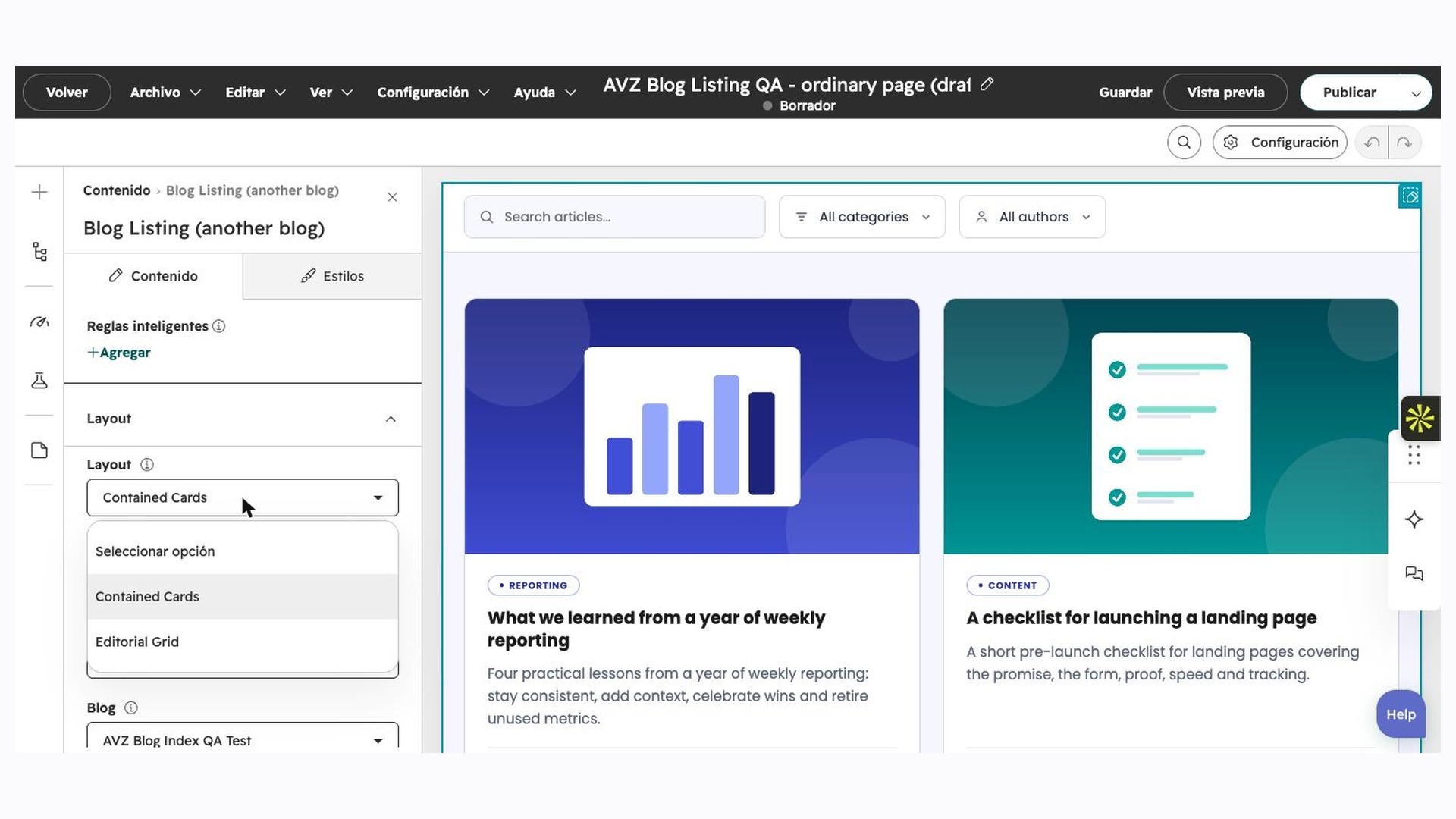
The HubSpot editor with the Layout selector open.

One Simple Editor Panel

Pick the layout, the blog, the columns and what to show. Colors, fonts and spacing are in the Styles tab.
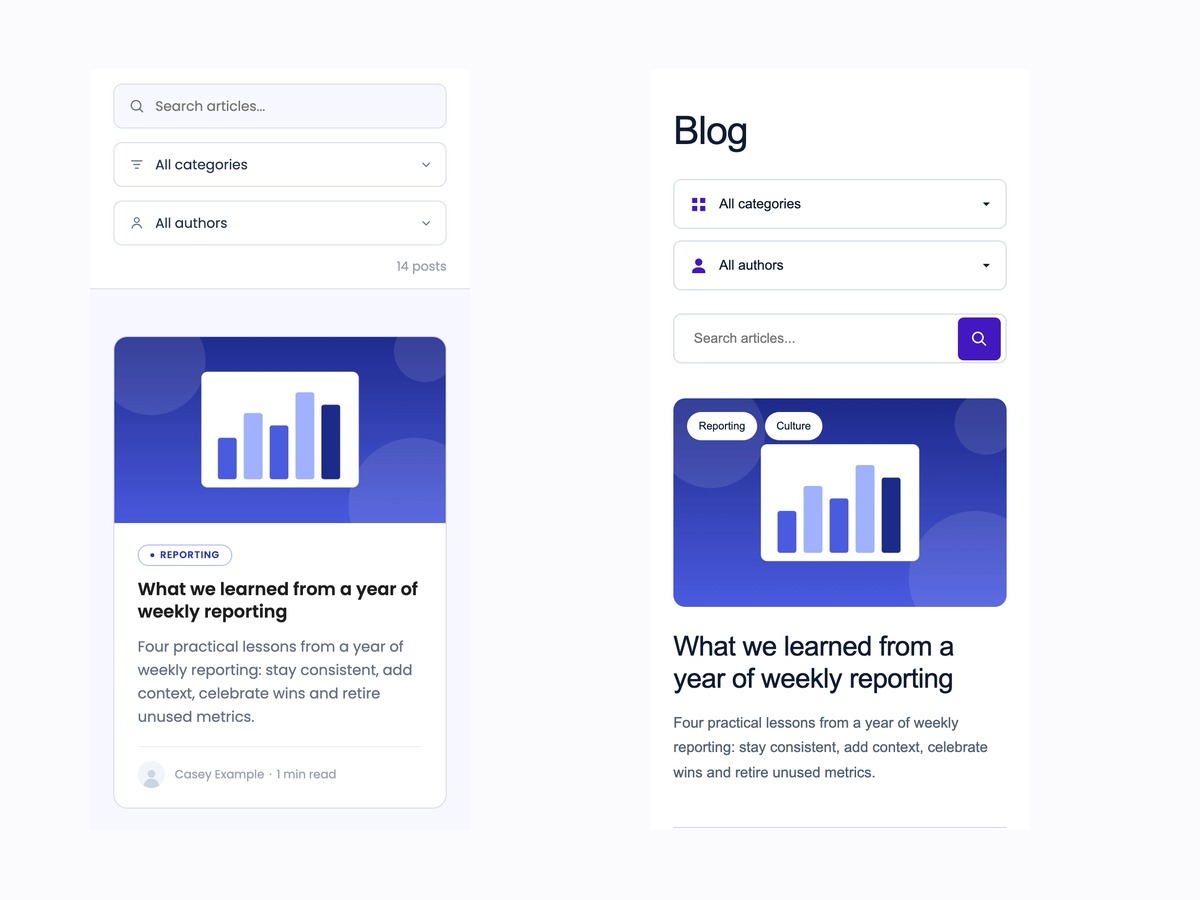
Both layouts at phone width.

Responsive

Two, three or four columns on large screens, two on tablets and one on phones, with filters that stack neatly.

Layouts and configurations

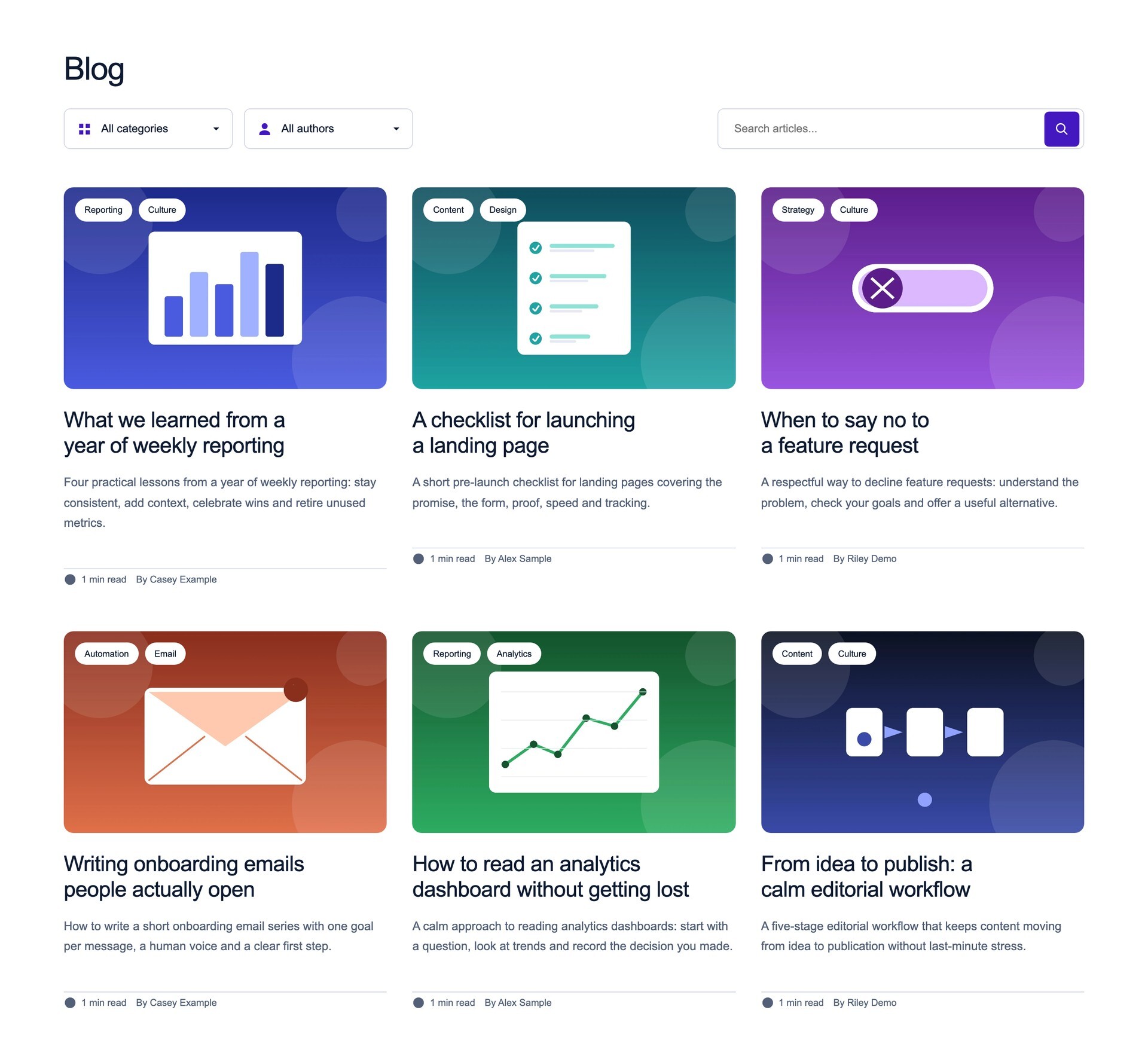
Real captures of the module running on a HubSpot blog with fictional posts.
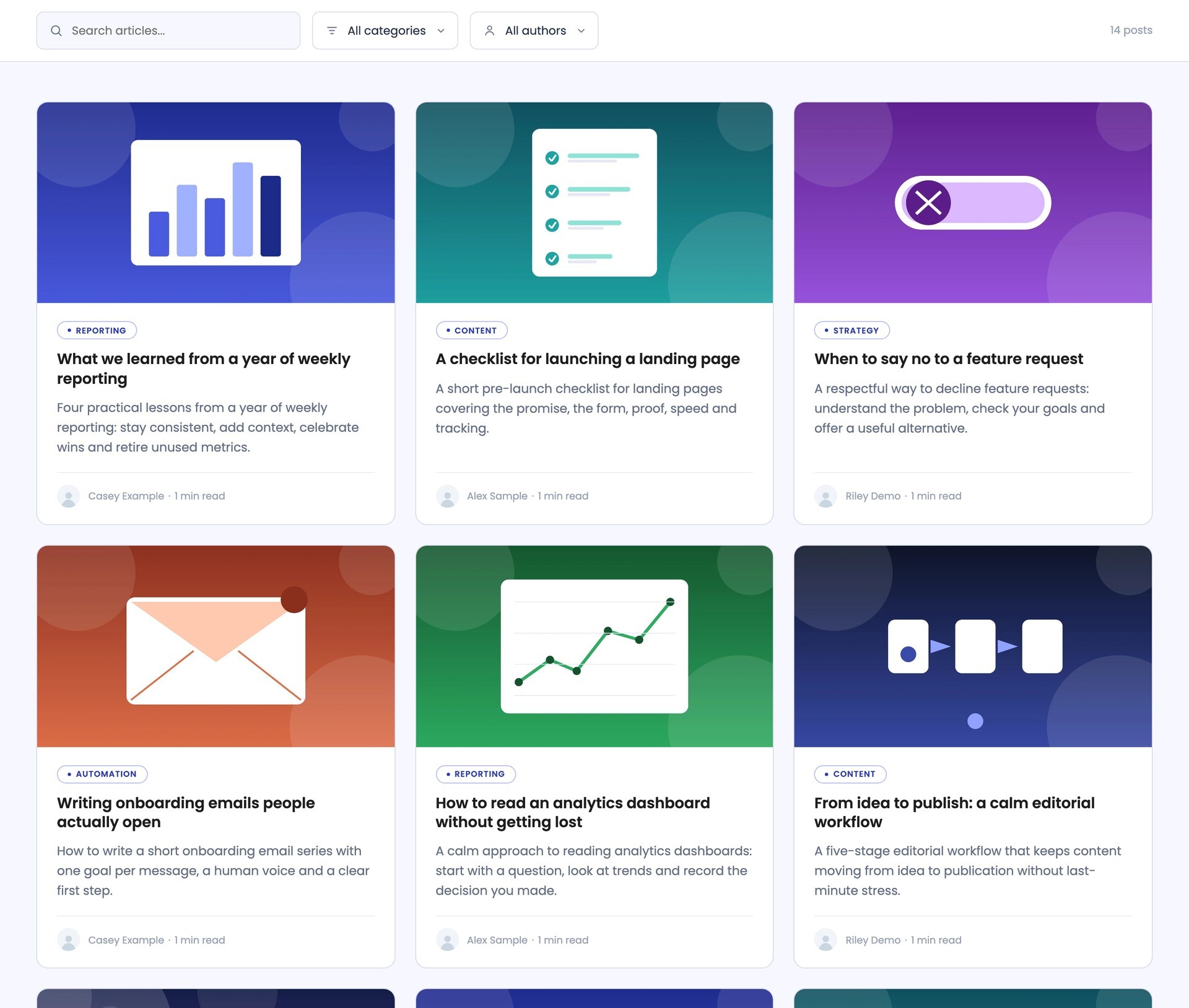
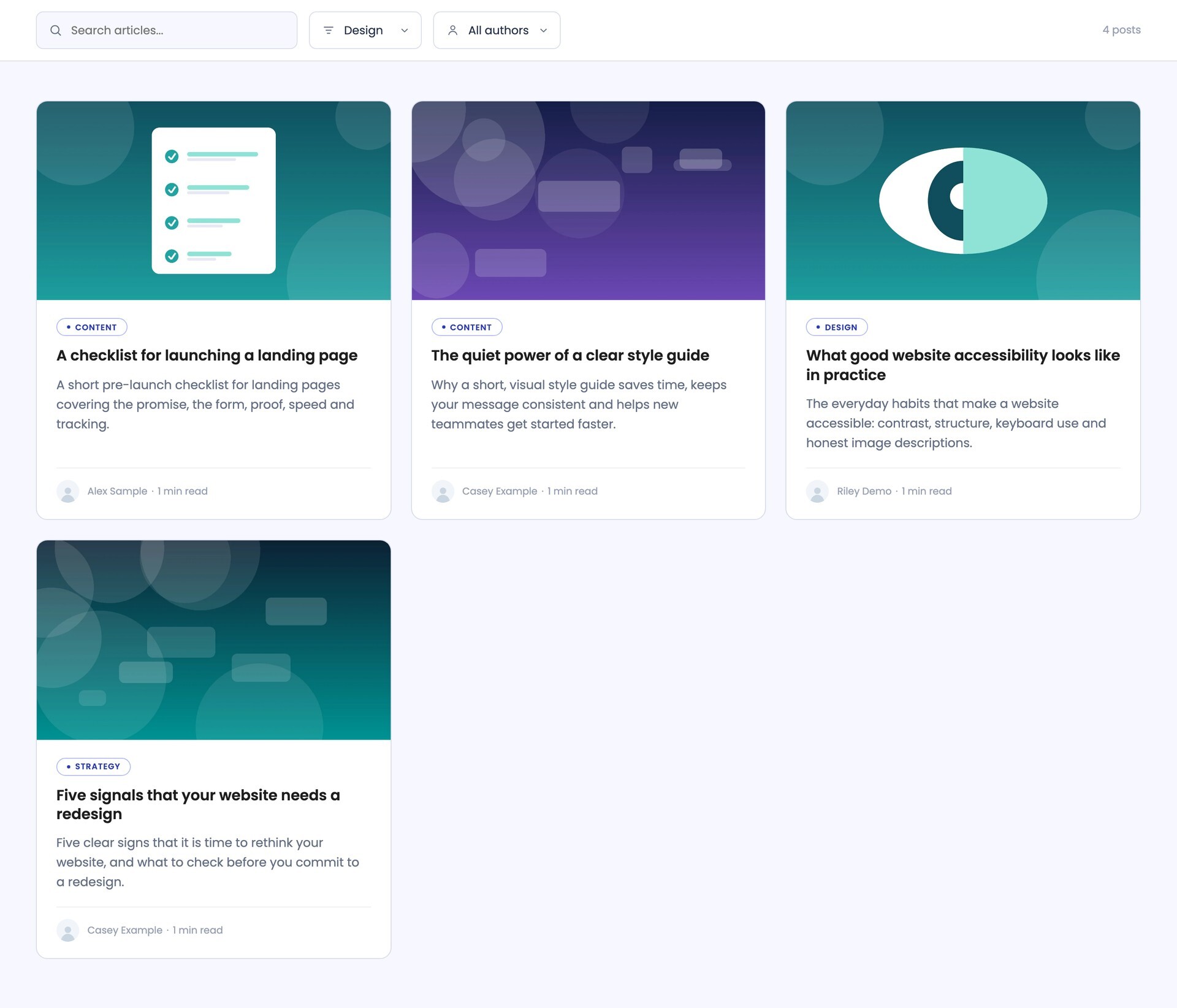
Contained Cards layout: filter bar and a grid of bordered post cards.
Contained Cards: a full-width filter bar and bordered cards with 16:9 images.

Responsive views

Captures of both layouts at phone width (Chrome device emulation, not physical devices).
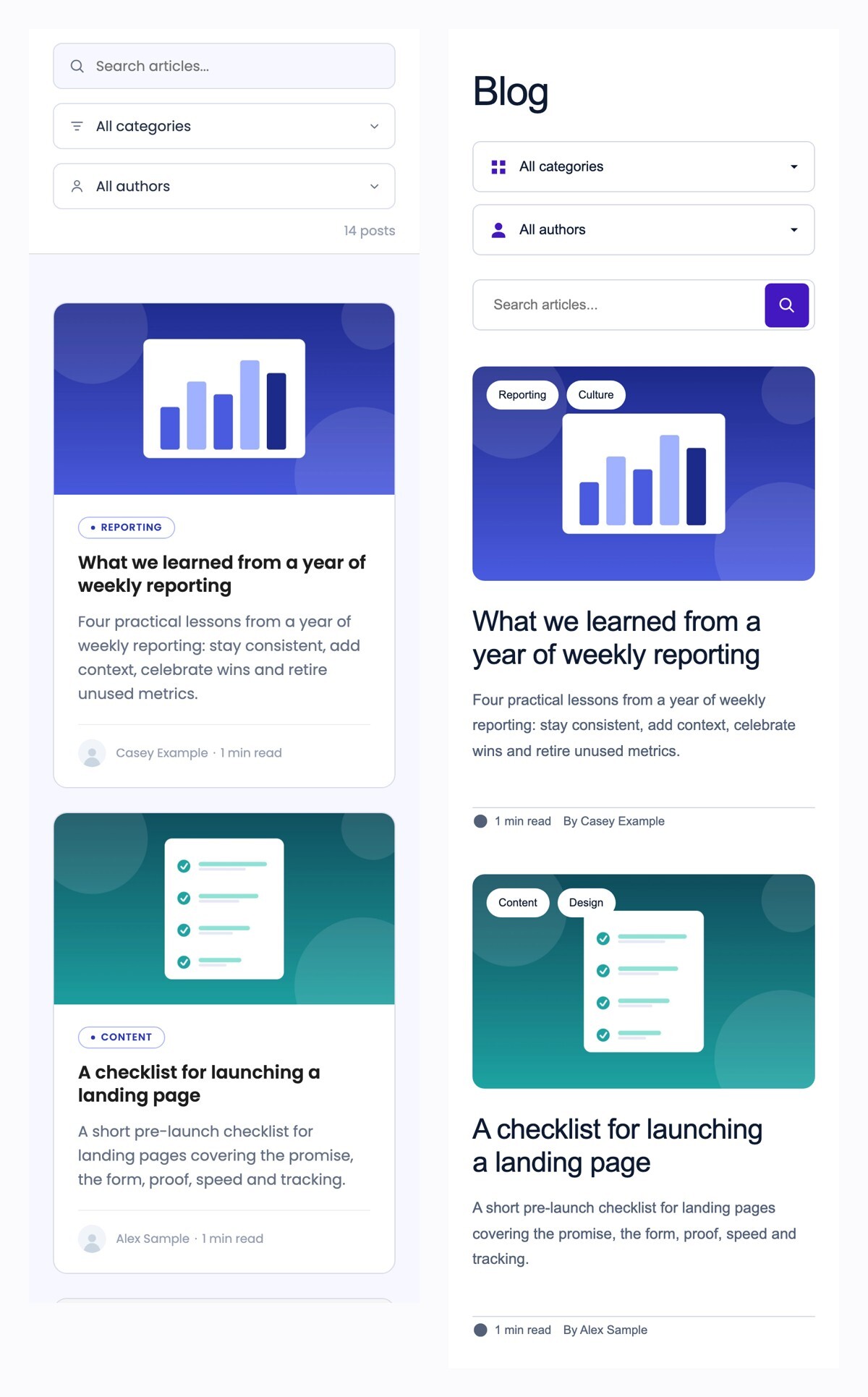
Both layouts at phone width in one column.
Phone width (390 px): Contained Cards on the left, Editorial Grid on the right. One column; the filters stack.

Technical details

Compatibility

  • HubSpot blog listing templates (listing, tag and author pages) with the blog of the page, or any website page or landing page with the option to choose a blog and show its latest posts.
  • Tested in current Google Chrome (desktop and mobile emulation) on a HubSpot blog with 14 posts, 10 per page. Other themes, multi-language blogs and other browsers were not part of the tests.

Requirements

  • A HubSpot account with a blog and published posts.
  • For the search box: a site search results page.
  • No third-party account is needed.

Dependencies

  • No external library. One script of under 0.5 KB makes the dropdowns open the chosen page.

Notable configuration

  • Layout: Contained Cards or Editorial Grid; 2, 3 or 4 columns; blog source.
  • Cards: image, category tag(s), excerpt, author, photo, reading time, optional button.
  • Category and author dropdowns, search box, post count, previous / next buttons.
  • Fonts, colors, content width, gap and corner radius; the accent follows the theme primary color.

Known limitations

  • Filters and pagination open other pages of your blog; there is no instant filtering on the same page.
  • With the blog of the page it only works in blog listing templates. With a chosen blog it works anywhere but has no count and no pagination.
  • The search box opens your site's search results page and needs that page to exist.
  • Up to 100 categories and 100 authors are listed. HubSpot can take a few minutes to update tags after publishing.
  • A theme that forces its own rules with !important on lists, headings or links can override the module's styles.

Related documentation