<img height="1" width="1" style="display:none" src="https://www.facebook.com/tr?id=1375001637486124&amp;ev=PageView&amp;noscript=1"> Skip to content
Avanzia Consulting
HubSpot CMS module

Process Timeline

Show how you work as a horizontal timeline, a vertical timeline, numbered cards or an alternating animated timeline. Easy to edit in the HubSpot editor, with icons, a connector line, gentle scroll motion and a layout that adapts to phones.

By Avanzia Consulting SRLUS$19 · one-time purchase

Why use it

Four layouts, one module

Horizontal timeline, vertical timeline, numbered cards or an alternating animated timeline. Switch between them with one setting.

Gentle scroll motion

In the alternating layout the cards appear as they scroll into view and the line fills up to the reader. Turn it off, or choose a calmer fade, in two settings.

Easy to edit

Each step has a title, a description and an icon. Add, remove and reorder steps from the HubSpot editor.

Made for phones

On tablets and phones the horizontal timeline becomes a vertical one and the alternating timeline a single column, so nothing scrolls sideways.

Matches your site

The accent color and the fonts follow your theme unless you change them. Colors, spacing and corner radius are in the Styles tab, so it works on light and dark designs.

Clear for every visitor

Steps are an ordered list under a heading level you choose. Motion is switched off for visitors who ask their device for reduced motion, and all content stays visible without JavaScript.

Live preview

These are real instances of the module, rendered by HubSpot on this page, with sample content: the alternating animated timeline, the horizontal timeline, the vertical timeline and the numbered cards.

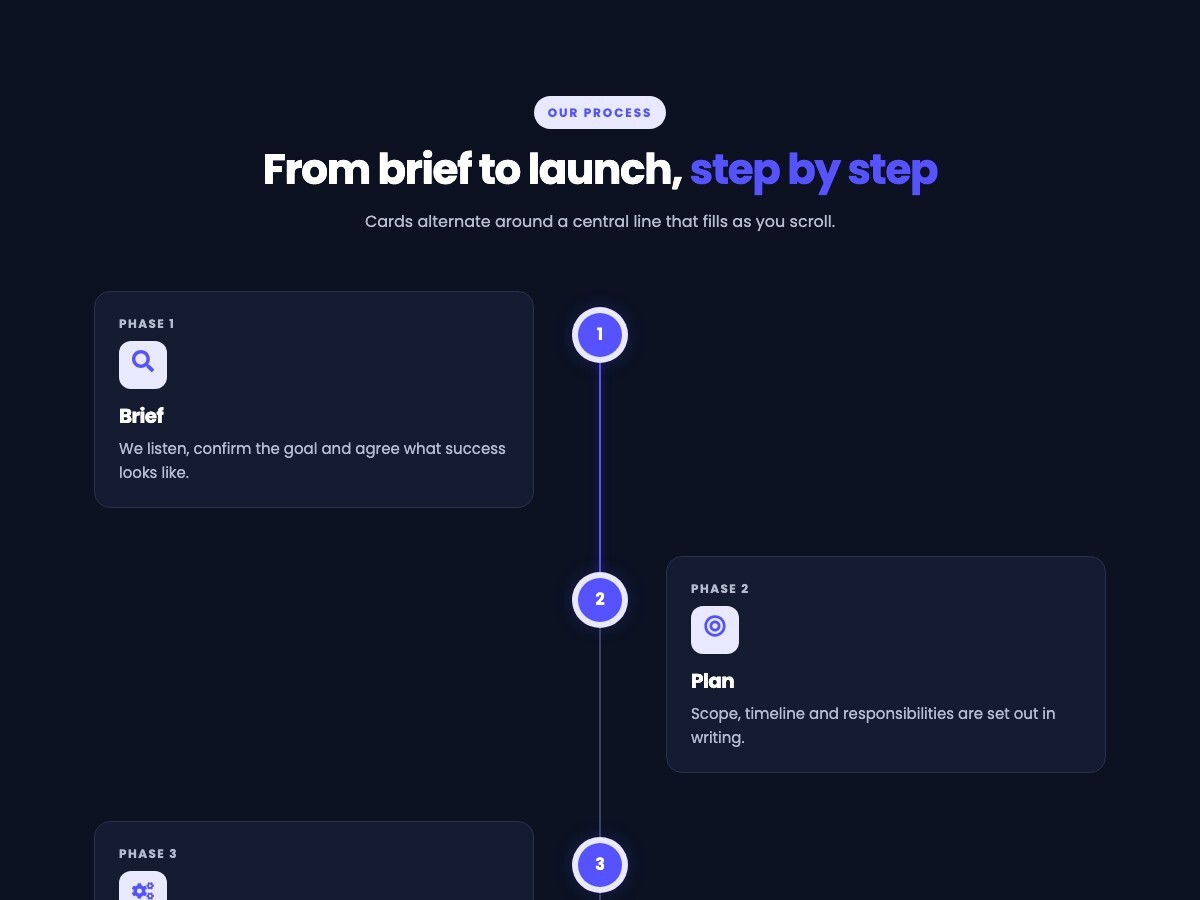
Our process

From brief to launch, step by step

Cards alternate around a central line that fills as you scroll.

  1. PHASE 1

    Brief

    We listen, confirm the goal and agree what success looks like.

  2. PHASE 2

    Plan

    Scope, timeline and responsibilities are set out in writing.

  3. PHASE 3

    Create

    We build and test everything in a safe environment first.

  4. PHASE 4

    Launch

    We go live together and check every result on day one.

  5. PHASE 5

    Learn

    We review the numbers each month and refine the process.

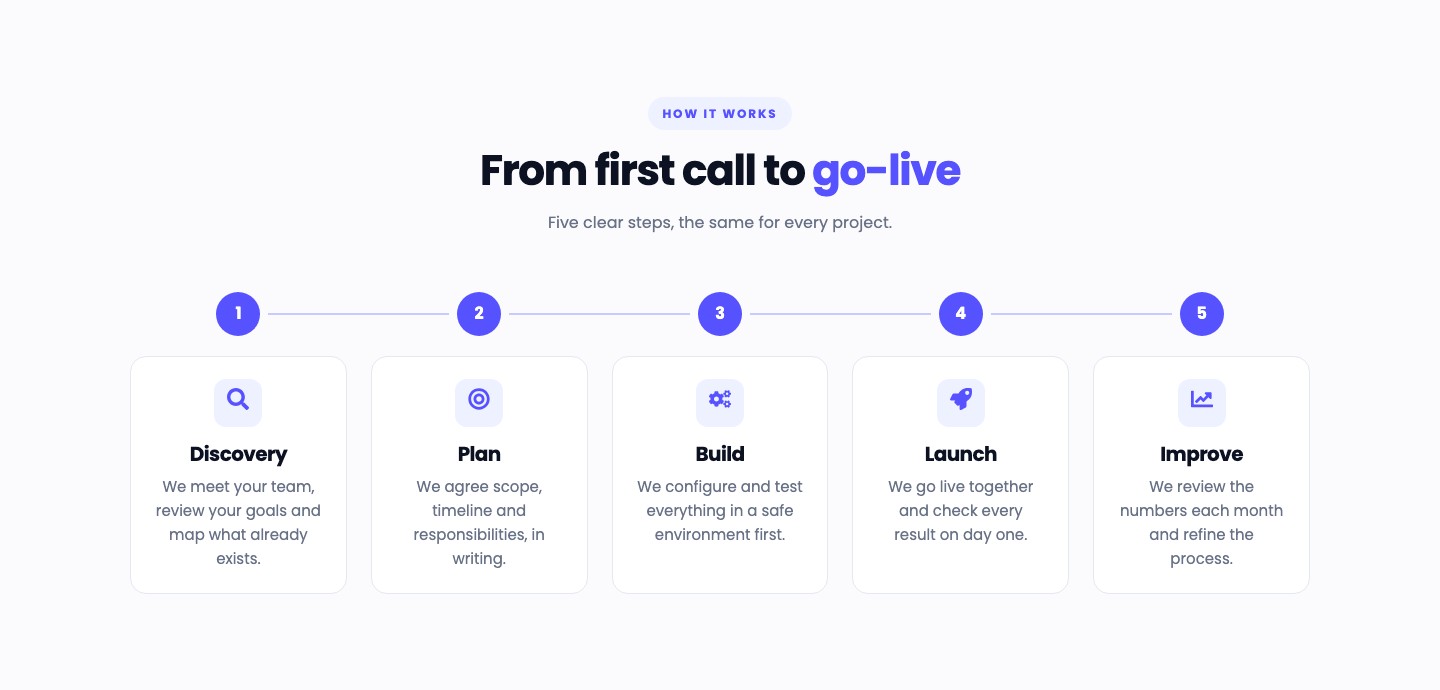
How it works

From first call to go-live

Five clear steps, the same for every project.

  1. Discovery

    We meet your team, review your goals and map what already exists.

  2. Plan

    We agree scope, timeline and responsibilities, in writing.

  3. Build

    We configure and test everything in a safe environment first.

  4. Launch

    We go live together and check every result on day one.

  5. Improve

    We review the numbers each month and refine the process.

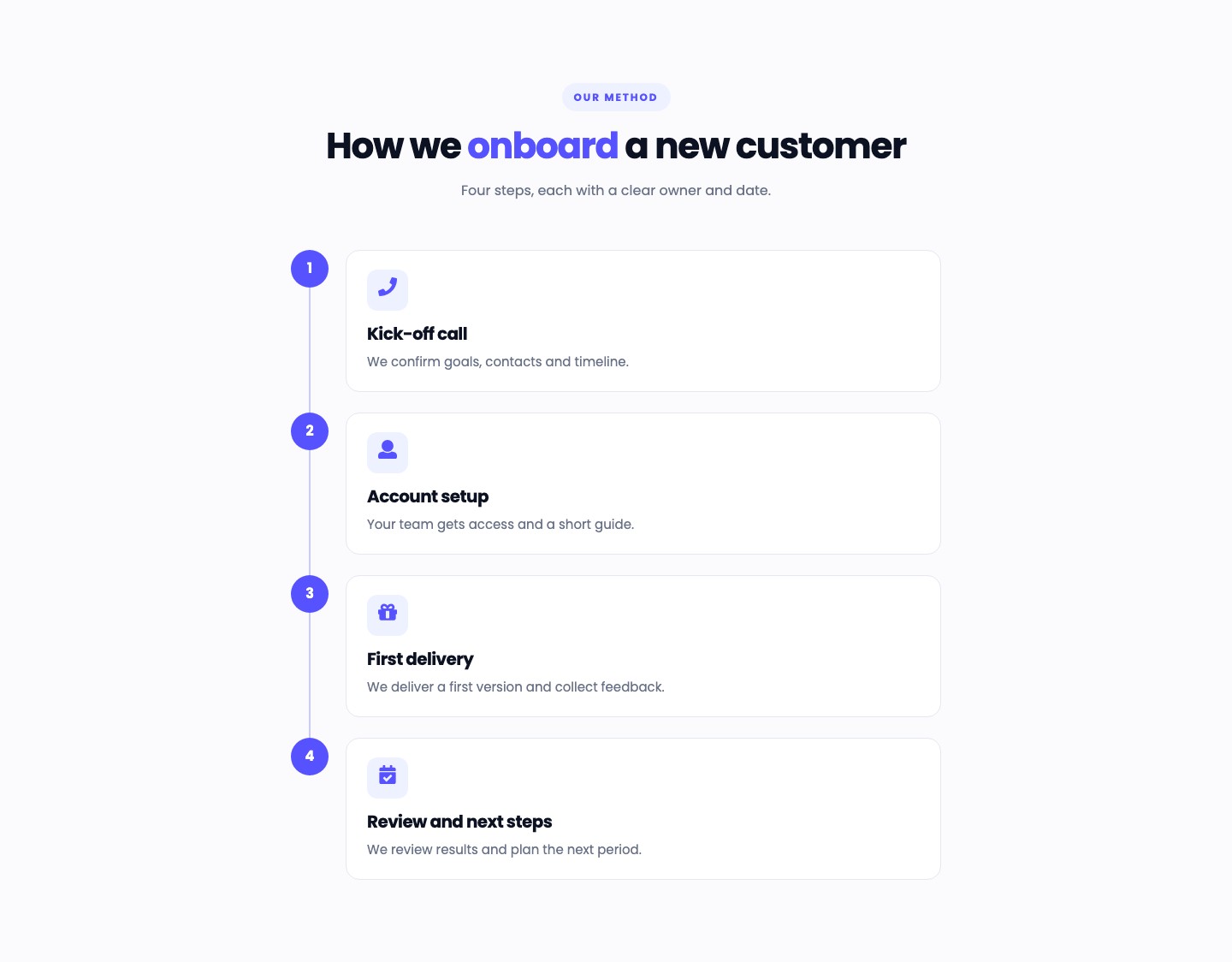
Our method

How we onboard a new customer

Four steps, each with a clear owner and date.

  1. Kick-off call

    We confirm goals, contacts and timeline.

  2. Account setup

    Your team gets access and a short guide.

  3. First delivery

    We deliver a first version and collect feedback.

  4. Review and next steps

    We review results and plan the next period.

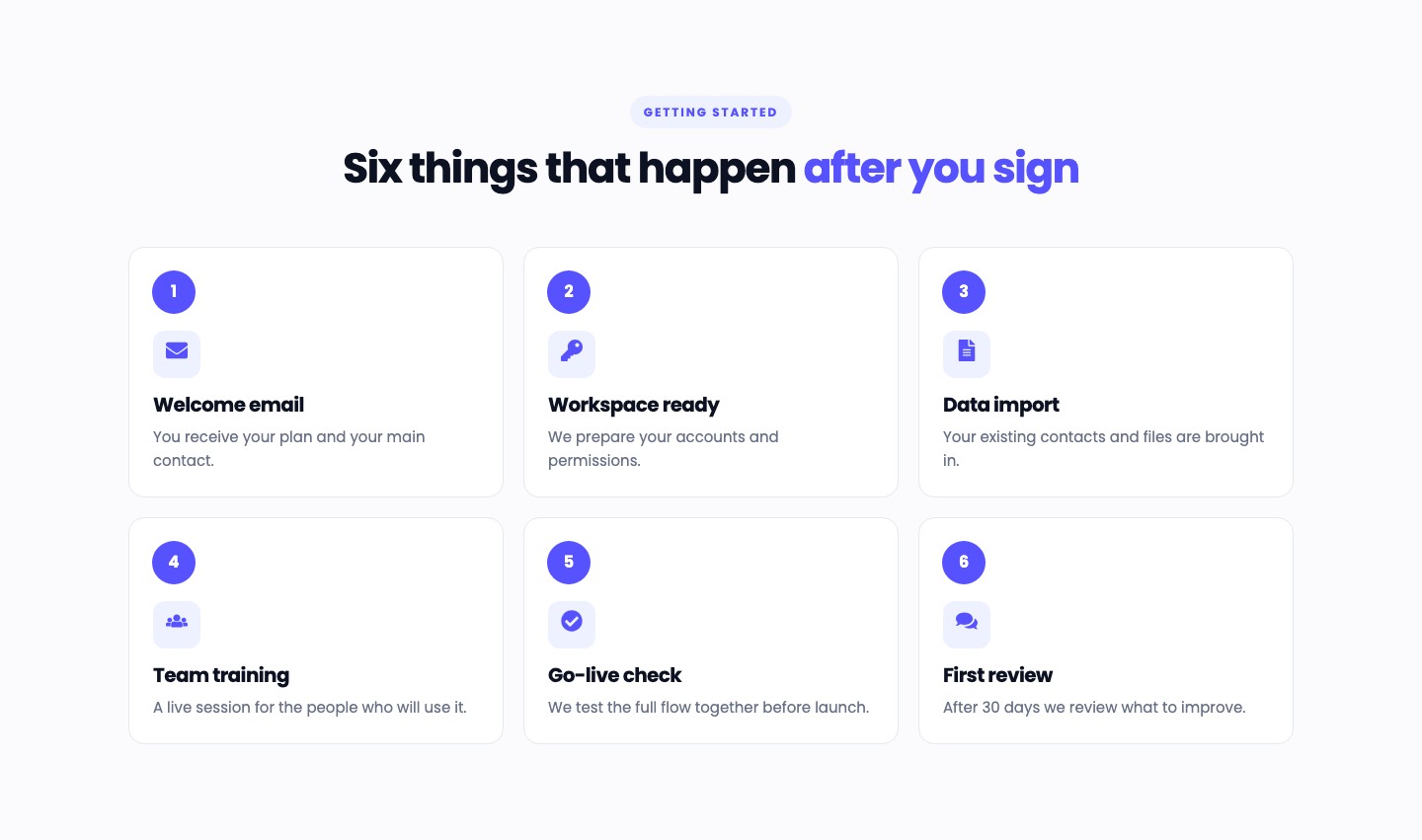
Getting started

Six things that happen after you sign

  1. Welcome email

    You receive your plan and your main contact.

  2. Workspace ready

    We prepare your accounts and permissions.

  3. Data import

    Your existing contacts and files are brought in.

  4. Team training

    A live session for the people who will use it.

  5. Go-live check

    We test the full flow together before launch.

  6. First review

    After 30 days we review what to improve.

Features

Alternating timeline on a dark background: cards on the left and right of a central line, with numbered nodes lit up along the line.

Alternating Animated Timeline

Cards alternate left and right of a central line. They appear as they scroll into view and the line fills with a soft glow up to the reader. Choose a slide or a calmer fade, or turn the motion off. It stops by itself for visitors who ask for reduced motion.
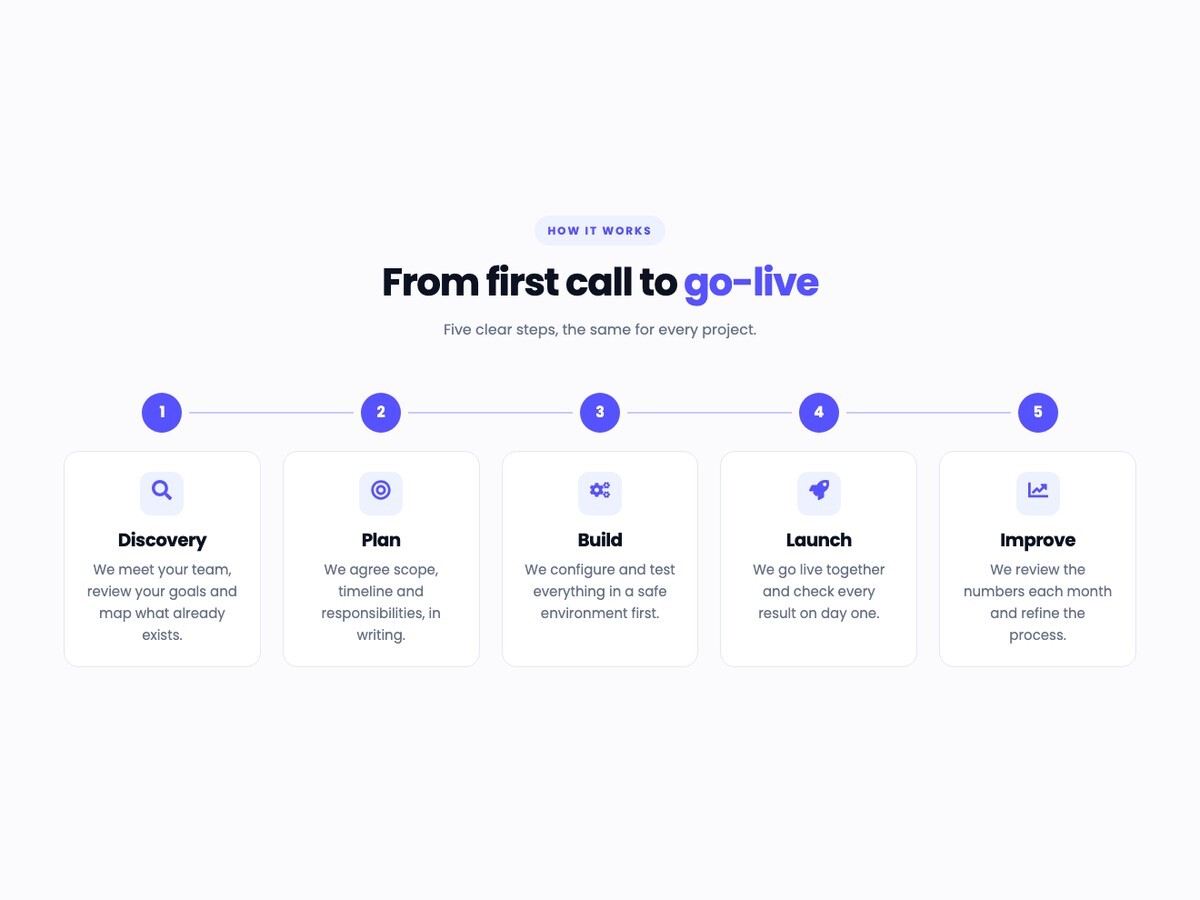
Horizontal timeline with five numbered steps joined by a connector line, each with an icon, a title and a short description.

Horizontal Timeline

Show up to ten steps in a row, joined by a connector line. With more than five steps the timeline wraps into two tidy rows. Turn the connector and the icons on or off.
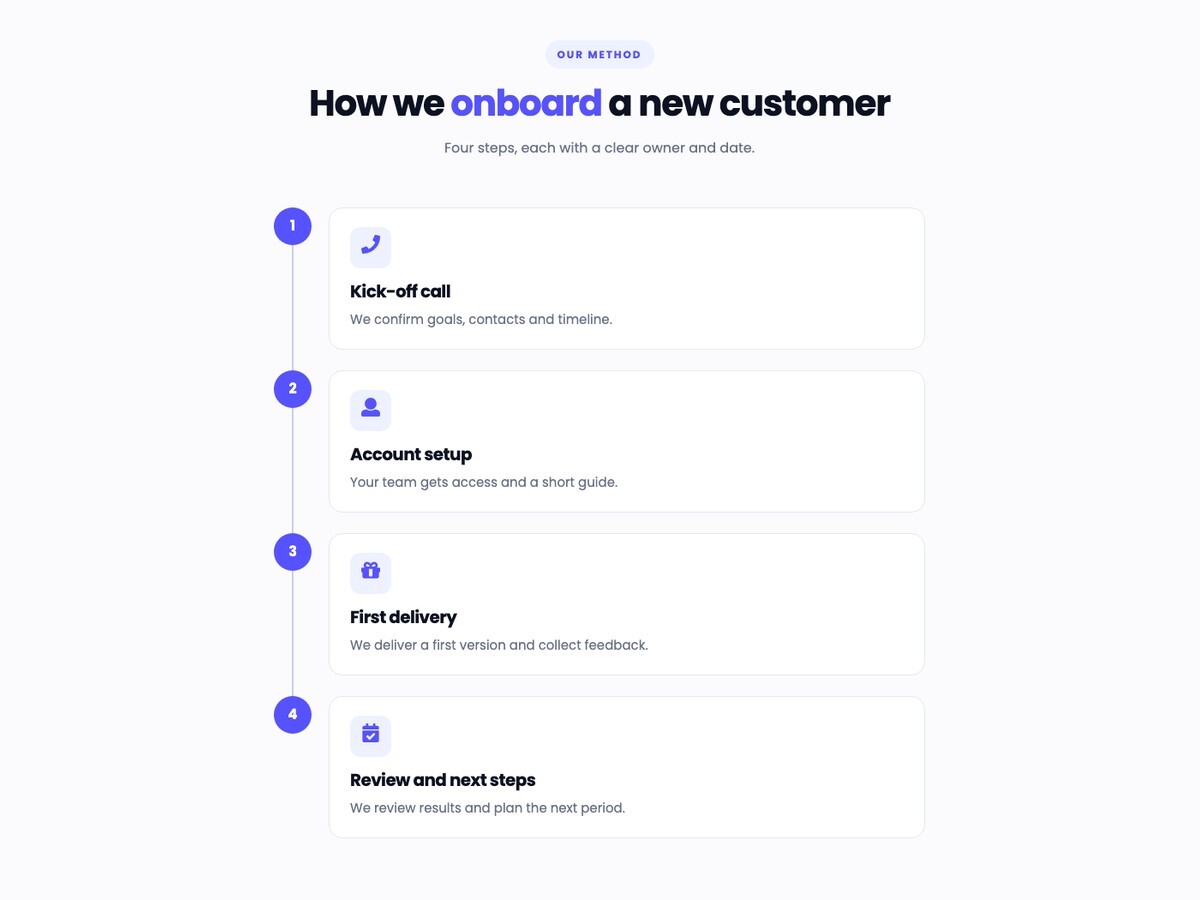
Vertical timeline with four numbered steps in a centered column, each in a card with an icon.

Vertical Timeline

A readable column of steps joined by a line. A good fit for longer descriptions and for pages with a narrow content area.
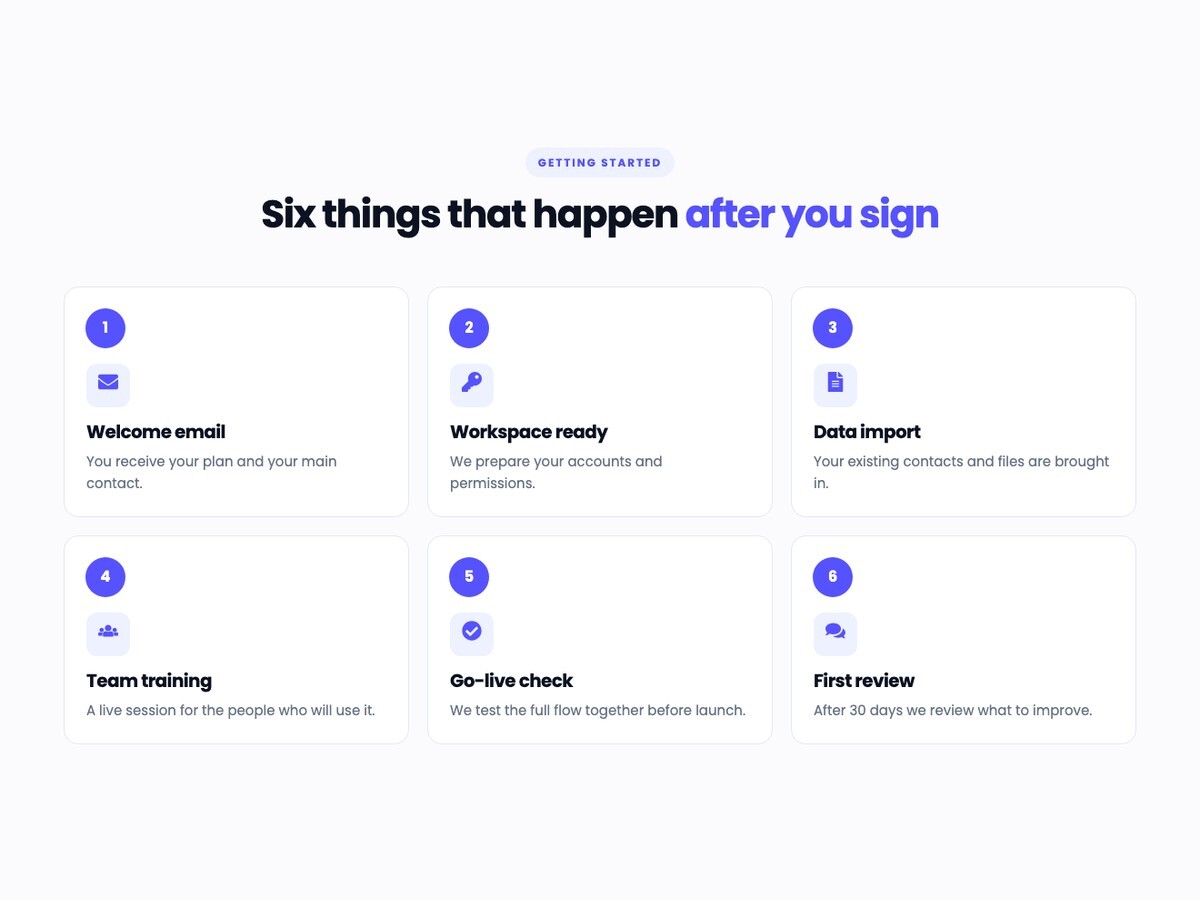
Six numbered cards in two rows of three, each with an icon, a title and a short description.

Numbered Cards

A grid of numbered cards for steps that do not need a connecting line. The columns adjust to the number of steps.
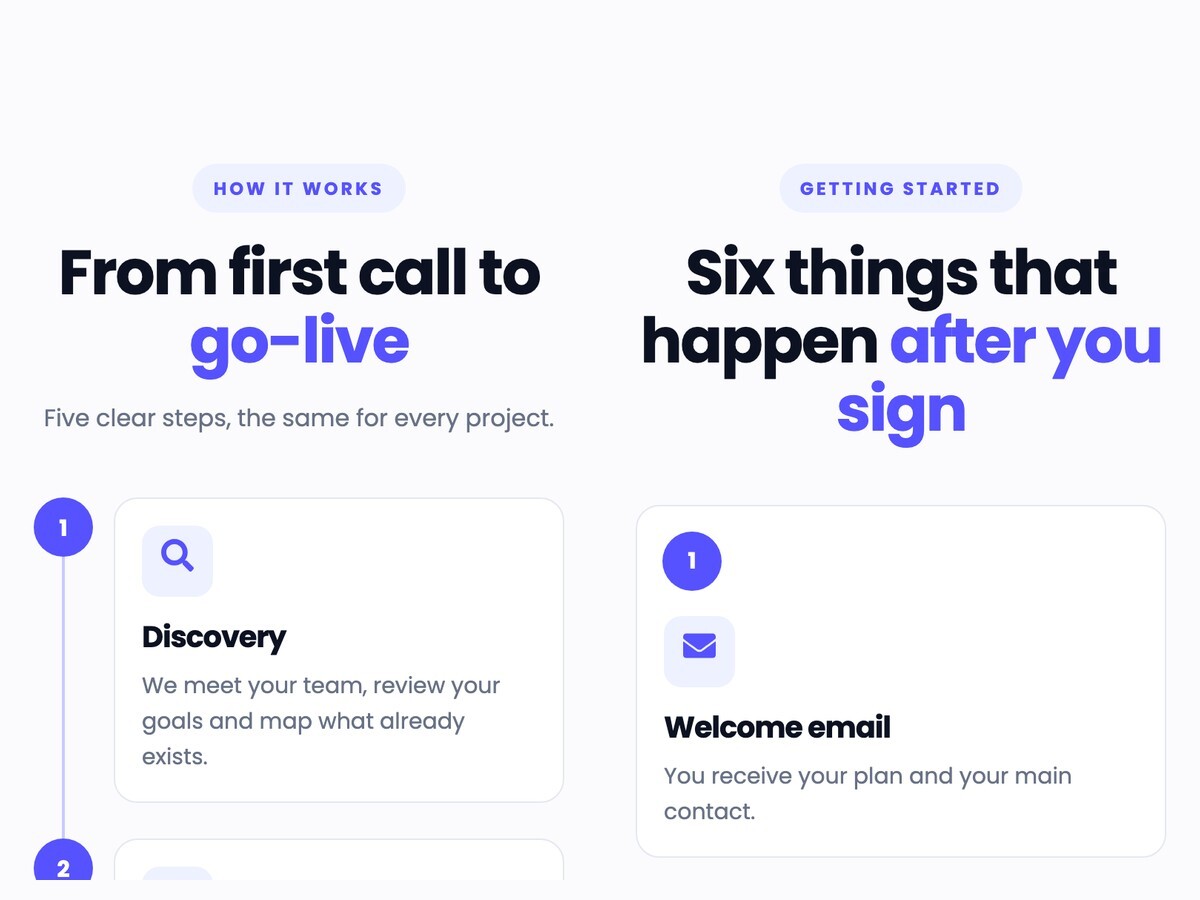
Two phone-width views: the timeline as a vertical list of steps, and the cards stacked in one column.

Adapts to Phones

On tablets and phones the horizontal timeline becomes a vertical one, the alternating timeline a single column and the cards stack, so nothing scrolls sideways.
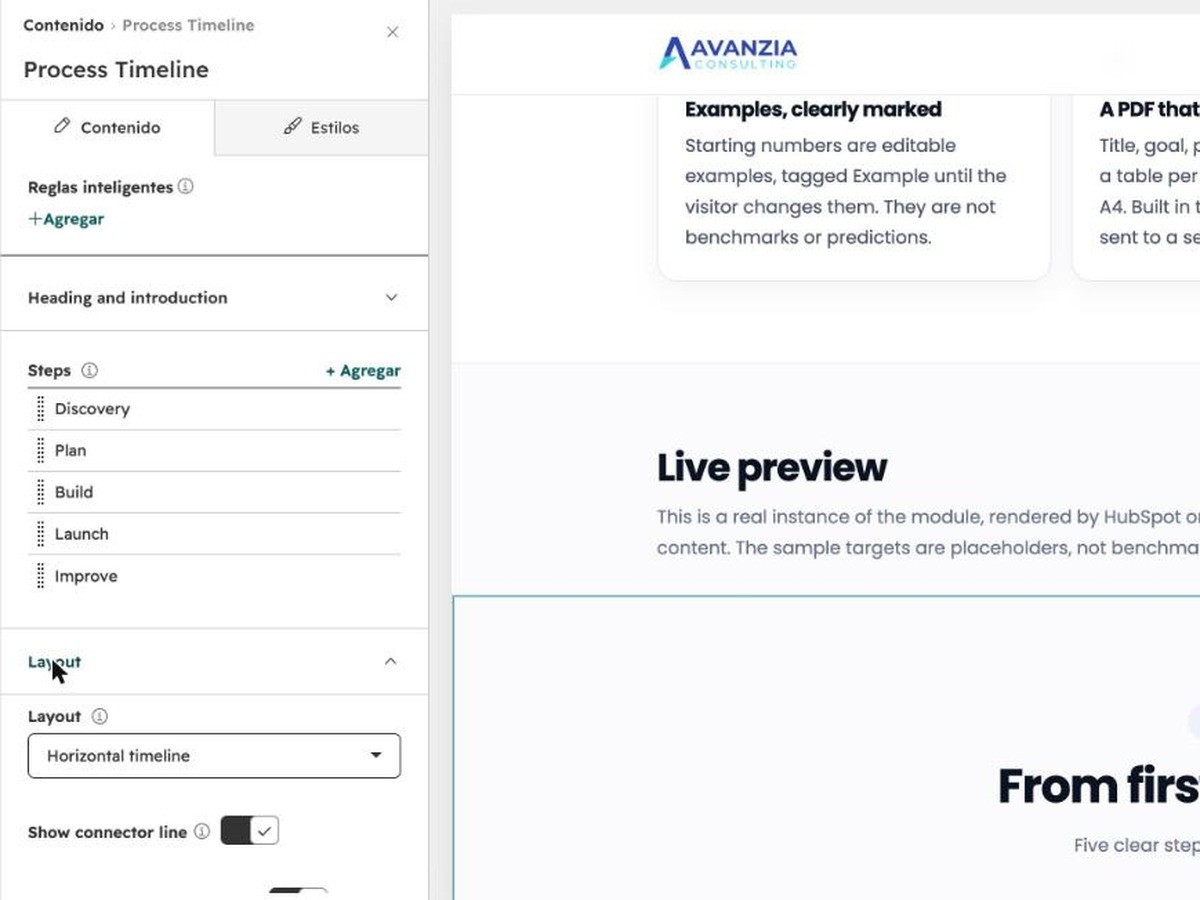
The HubSpot editor panel of the module with the list of steps and the Layout setting.

Editable Steps, Icons and Motion

Edit each step's title, description and icon in the editor. Add, remove and reorder steps, change the layout and the motion, and set colors, fonts and spacing, without code.

Layouts and configurations

Real captures of the module running in HubSpot, with its sample content.
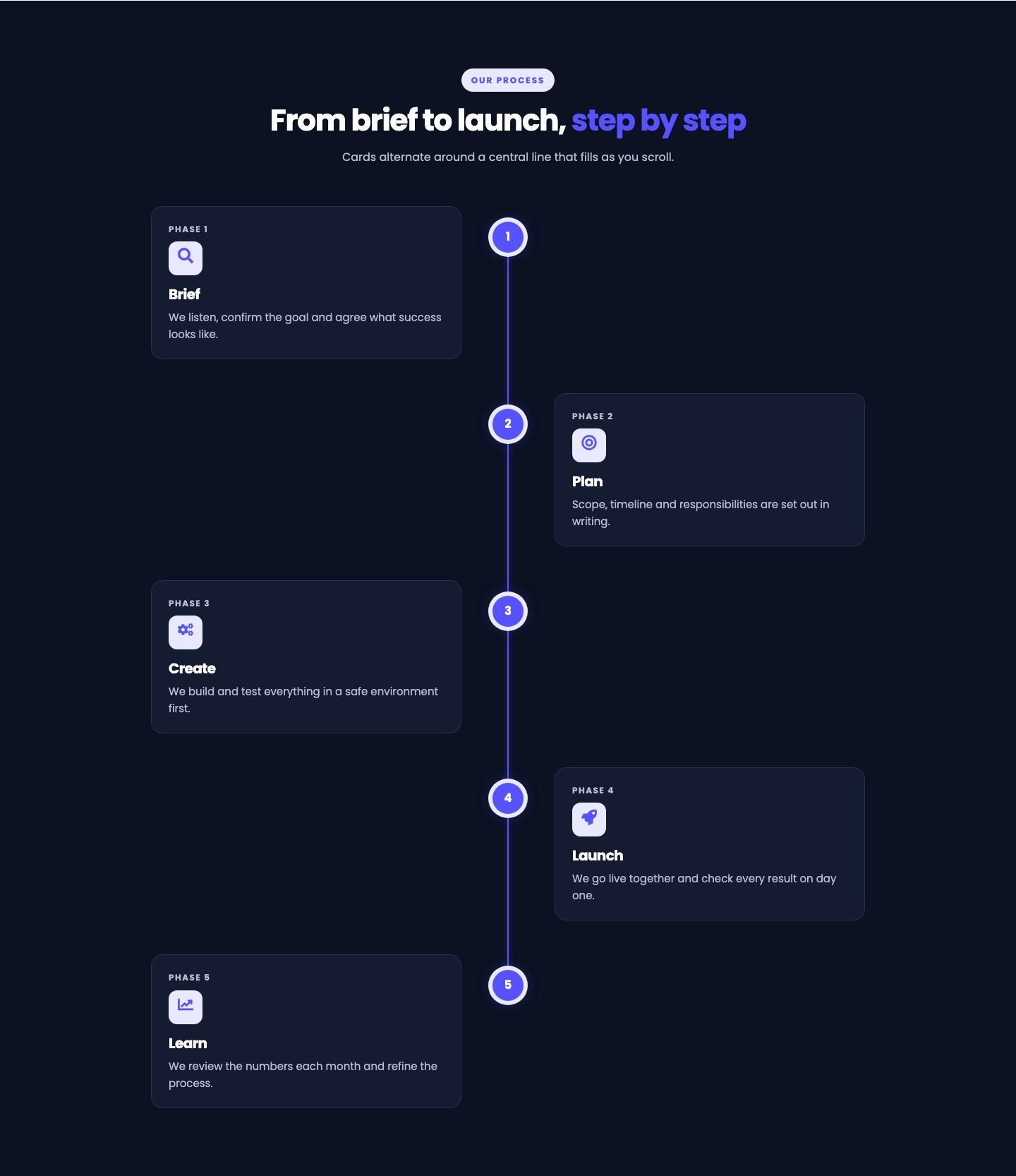
Alternating timeline with five steps on a dark background, cards left and right of a lit central line.
Alternating animated timeline: cards on both sides of a central line that fills as you scroll. Shown here on a dark background.

Responsive views

Captures of the same module at tablet and phone widths (Chrome device emulation, not physical devices).
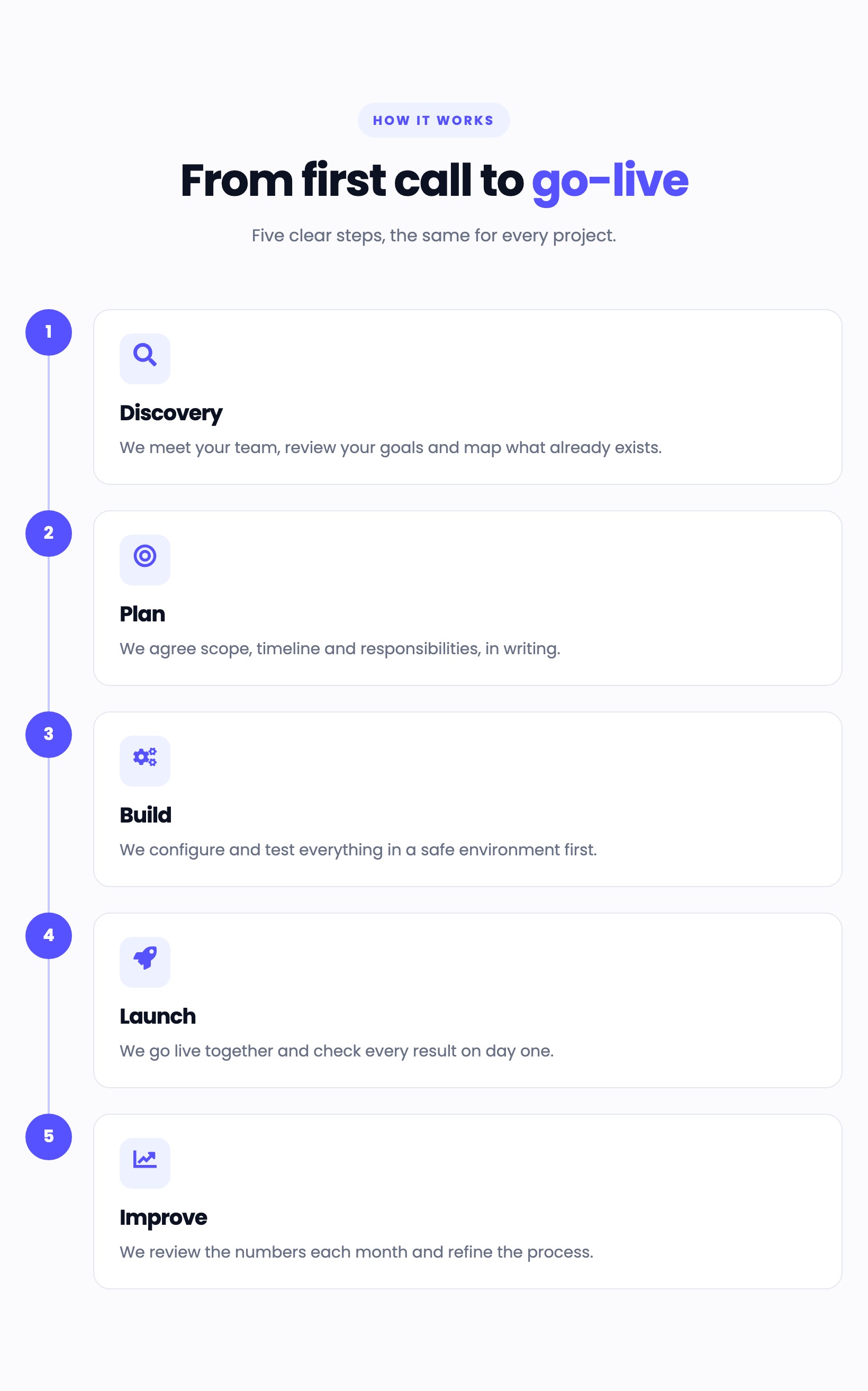
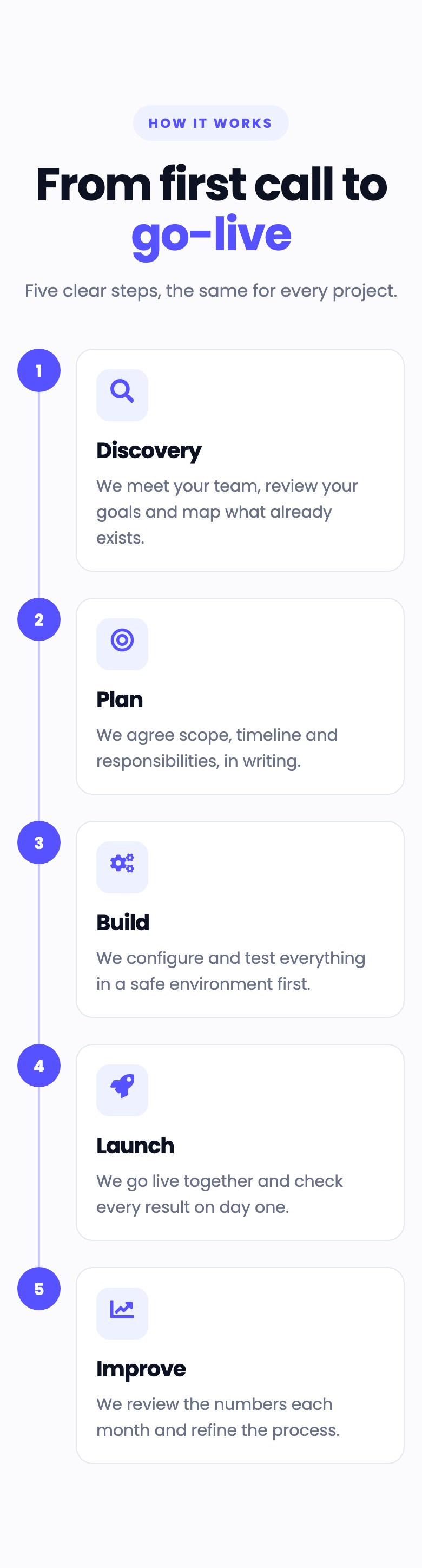
The timeline at tablet width as a vertical list of five steps.
Tablet width (820 px): the horizontal timeline becomes a vertical one.

Technical details

Compatibility

  • HubSpot CMS: site pages, landing pages and blog posts where custom modules can be added.
  • Tested in current Google Chrome (desktop and mobile emulation); other browsers were not part of the tests.

Requirements

  • A HubSpot account that can edit pages or templates.
  • No third-party account is needed.

Dependencies

  • None: no external library and no network requests. The alternating layout uses a small script included with the module; the other three layouts use none. Step icons use HubSpot's own icon picker.

Notable configuration

  • Layout: horizontal timeline, vertical timeline, numbered cards or alternating animated timeline.
  • 2 to 10 steps, each with a title, a description, an optional icon, an optional step number and an optional label.
  • Motion (alternating layout): animate on scroll, slide or fade entrance, line fill and glow.
  • Connector line, icons and soft card shadow can be turned on or off.
  • Heading level, accent color (follows the theme primary color), fonts, colors, spacing and corner radius.

Known limitations

  • Steps are shown in order; there are no dates, links or images inside a step.
  • Icons come from the icon picker of your HubSpot account.
  • With more than five steps the horizontal timeline wraps into two rows.
  • The alternating layout stacks into one column below 901 px wide.
  • A theme that forces its own rules with !important on lists, headings or text can override the module's styles.

Related documentation