<img height="1" width="1" style="display:none" src="https://www.facebook.com/tr?id=1375001637486124&amp;ev=PageView&amp;noscript=1"> Skip to content
Avanzia Consulting
HubSpot CMS module

FAQ | Frequently Asked Questions Accordion

Add a clean, editable FAQ section to any HubSpot page: highlighted heading, introduction and an accordion of questions and answers, with the introduction on the side or on top.

By Avanzia Consulting SRLFree

Why use it

No code needed

Build the section from the HubSpot editor: up to 40 questions, rich-text answers, and control over how many start open.

Fits your page design

Choose a Side layout or a centered Top layout, and style fonts, colors, borders, spacing and icons from the editor.

Accessible by design

Real buttons for every question, keyboard navigation, visible focus, reduced-motion support and answers that stay readable without JavaScript.

Works with your theme and language

No external libraries and no fixed text inside the module, so you can write in any language and place several sections on a page.

Live preview

These are real instances of the module, rendered by HubSpot on this page. Try the Side layout with its sticky introduction and the Top layout.

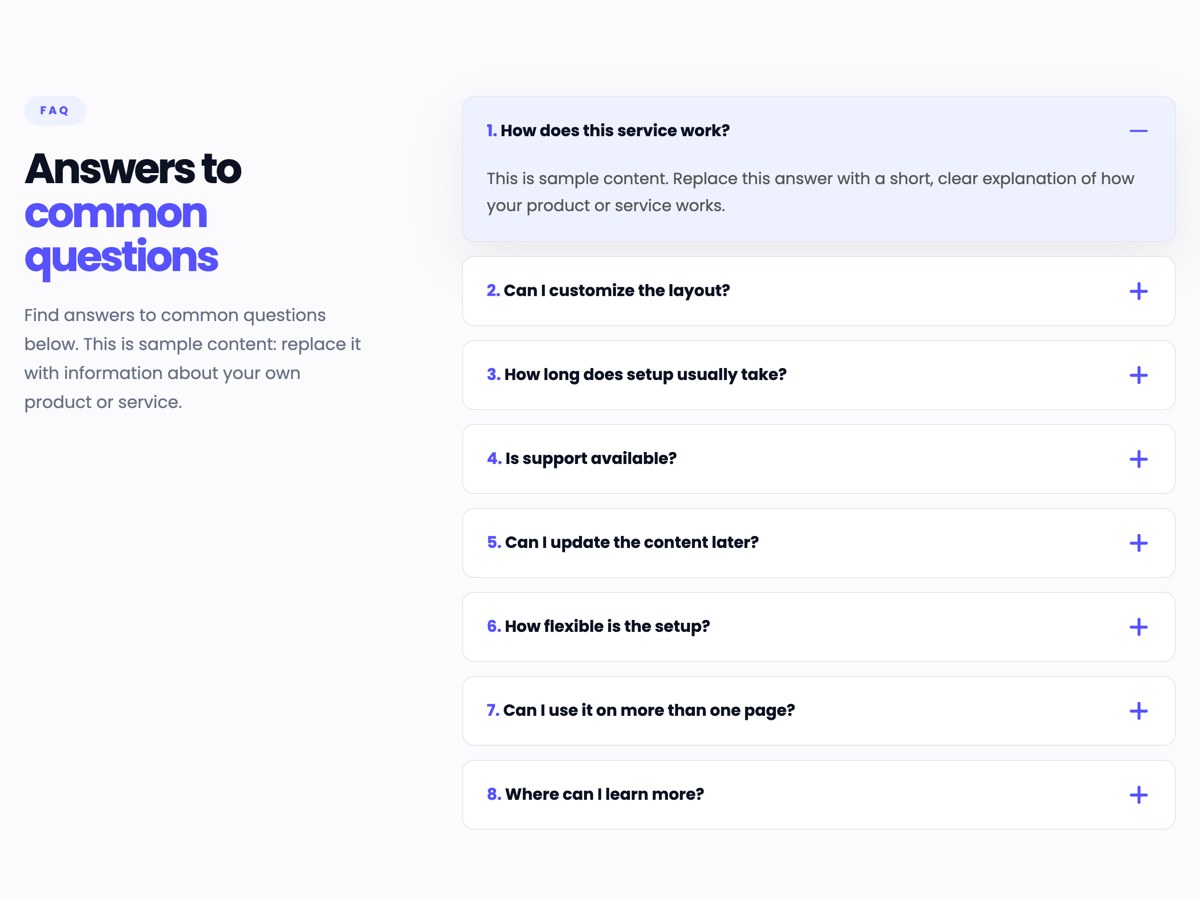
Example 1 · Side layout with sticky introduction

The introduction stays in view while you scroll the questions (screens wider than 980 px).

FAQ

Answers to common questions

Find answers to common questions below. This is sample content: replace it with information about your own product or service.

This is sample content. Replace this answer with a short, clear explanation of how your product or service works.

This is sample content. Use this space to explain which layout options your visitors can choose from.

This is sample content. Describe what the setup involves and what your visitors can expect.

This is sample content. Explain how visitors can reach you and what kind of help they can find.

This is sample content. Explain what can be updated after getting started.

This is sample content. Describe the options available to adapt the setup to different needs.

This is sample content. Explain where and how many times the section can be used.

This is sample content. Point visitors to the page, guide or contact option where they can learn more.

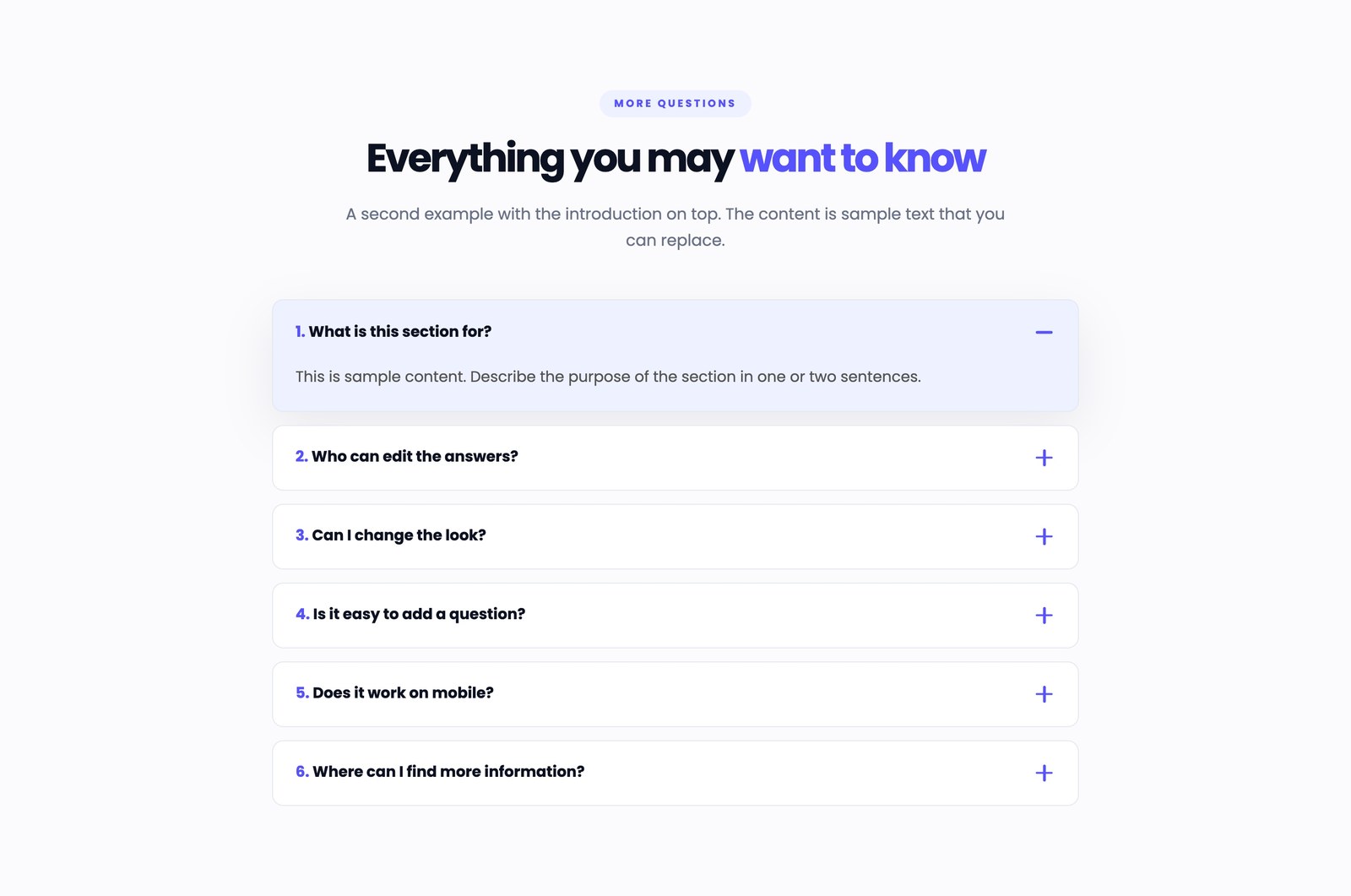
Example 2 · Top layout

The same module with the introduction centered above the accordion.

More questions

Everything you may want to know

A second example with the introduction on top. The content is sample text that you can replace.

This is sample content. Describe the purpose of the section in one or two sentences.

This is sample content. Explain who manages the content and where it is edited.

This is sample content. Explain which visual options can be adapted.

This is sample content. Describe how new questions are added to the list.

This is sample content. Explain how the section adapts to smaller screens.

This is sample content. Point visitors to the page or contact option where they can learn more.

Features

FAQ accordion in the Side layout on the public preview page.

Two Flexible Layouts

Choose between a side-by-side layout with the introduction on the left or a top layout with a centered heading. Adapt your FAQ section to different page designs without editing code.
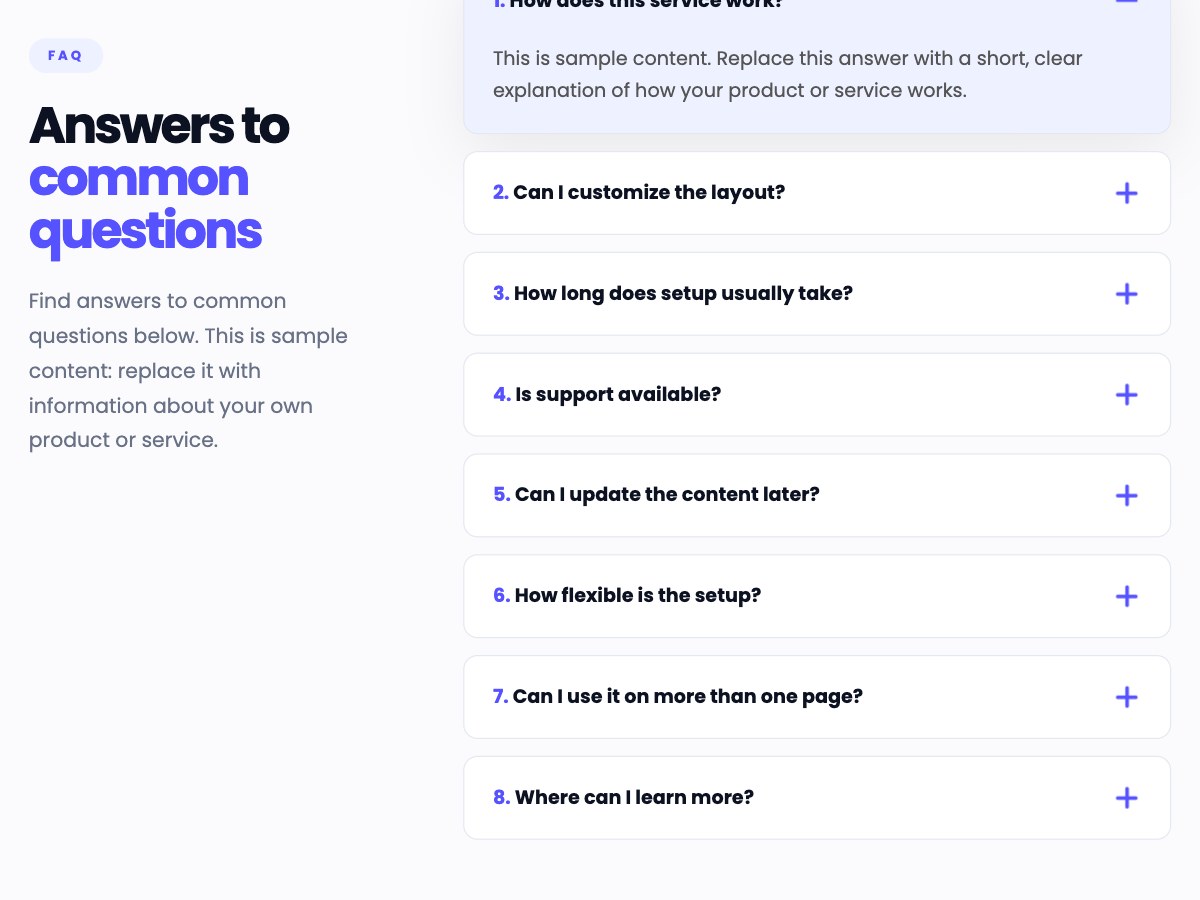
Side layout scrolled down: the introduction stays pinned at the top while the first question has scrolled out of view.

Optional Sticky Introduction

Keep your FAQ introduction visible as visitors scroll through questions in the side layout. Enable or disable sticky positioning and adjust the top offset to accommodate your website header.
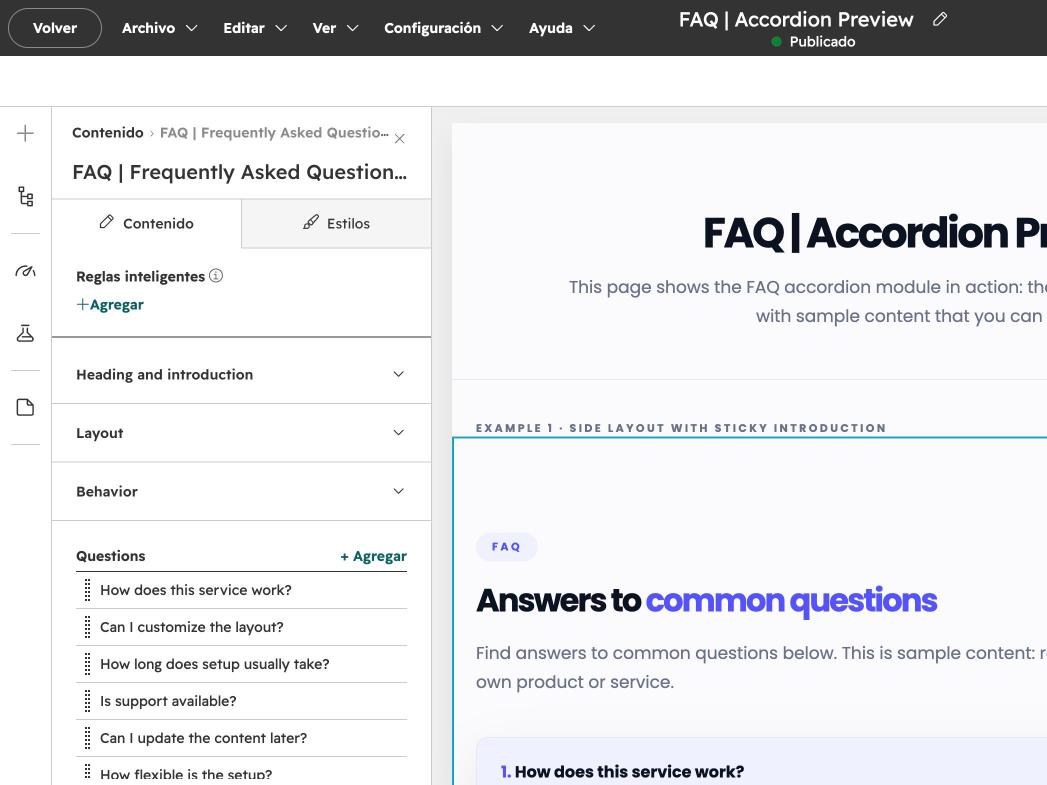
HubSpot page editor showing the module's list of questions with drag handles.

Easy Question Management

Add, edit, remove, and reorder questions and answers directly in the HubSpot page editor. Keep your FAQ content organized and up to date without developer assistance.
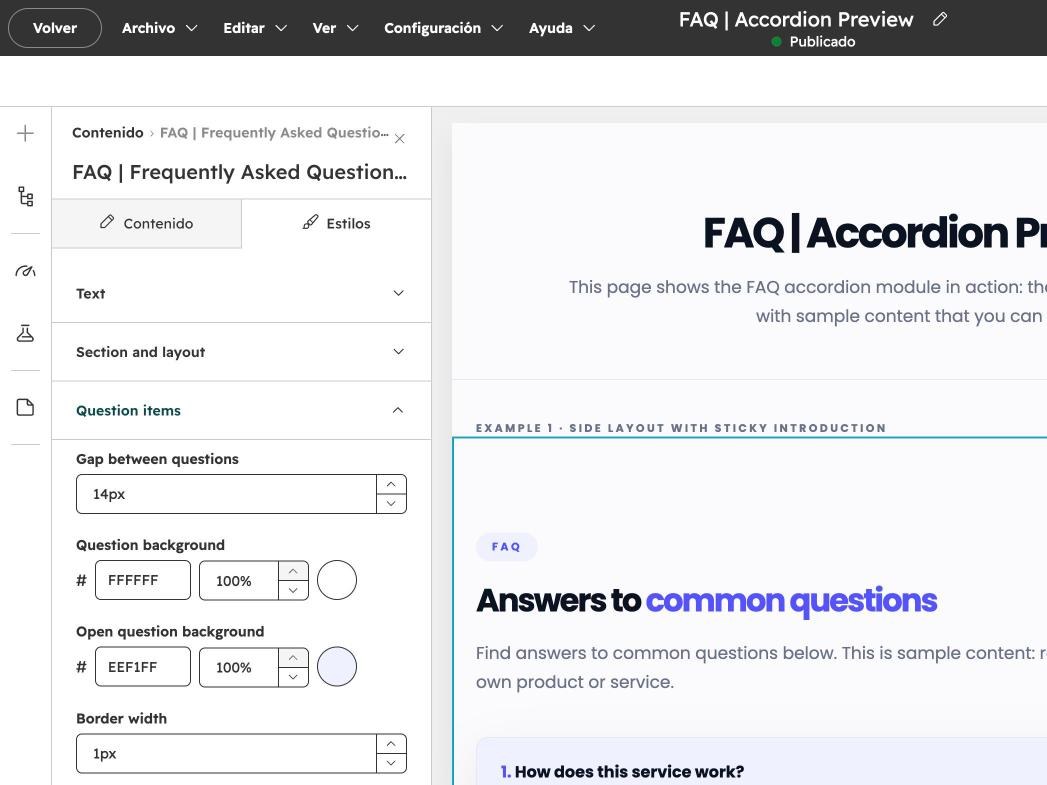
HubSpot page editor Styles tab with the Question items group next to the module.

Customizable Design

Personalize colors, typography, backgrounds, borders, spacing, and layout settings using built-in style controls. Match your brand without modifying HTML, CSS, or JavaScript.
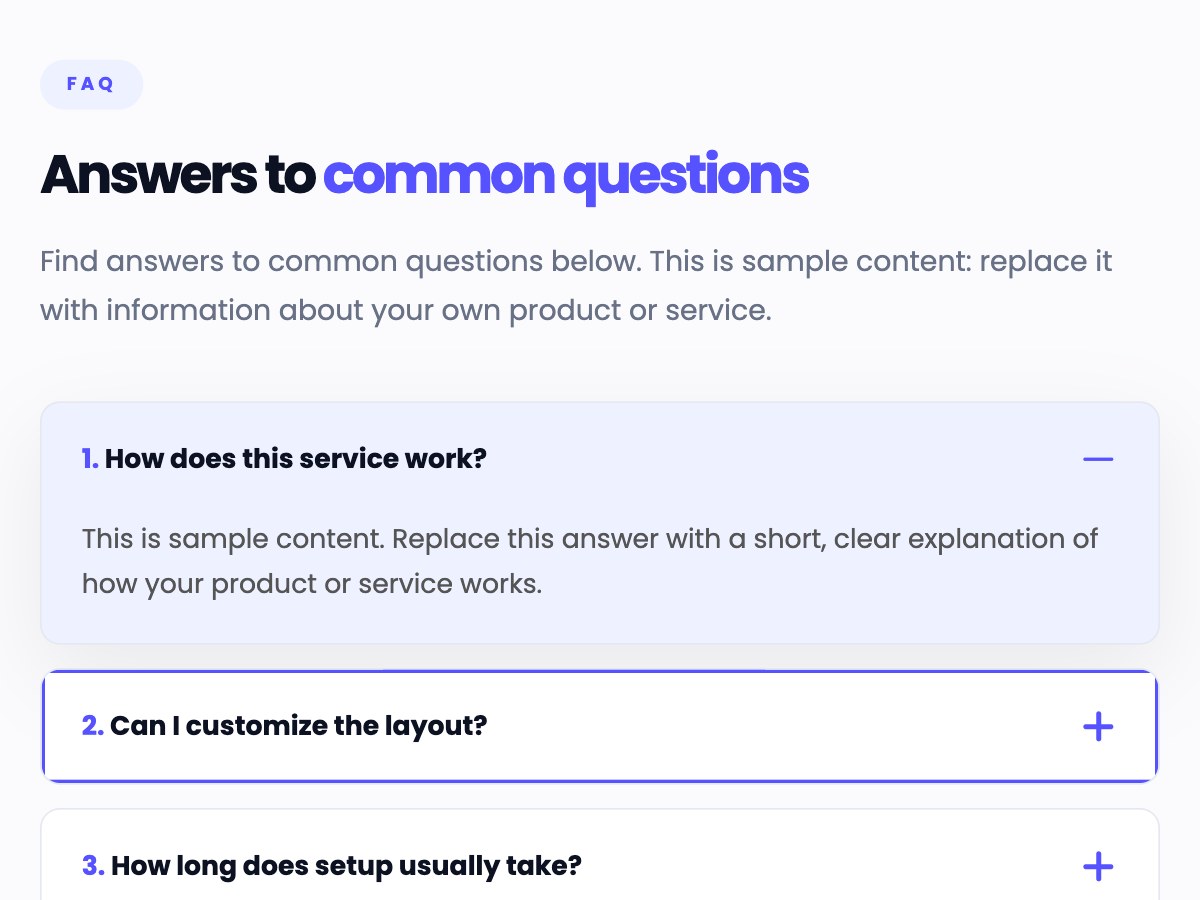
FAQ accordion in one column at tablet width with a visible keyboard focus ring on the second question.

Responsive and Accessible

Deliver a seamless FAQ experience across desktop, tablet, and mobile. Includes keyboard navigation, visible focus states, reduced-motion support, and accessible accordion controls.

Layouts and configurations

Real captures of the module in each layout.
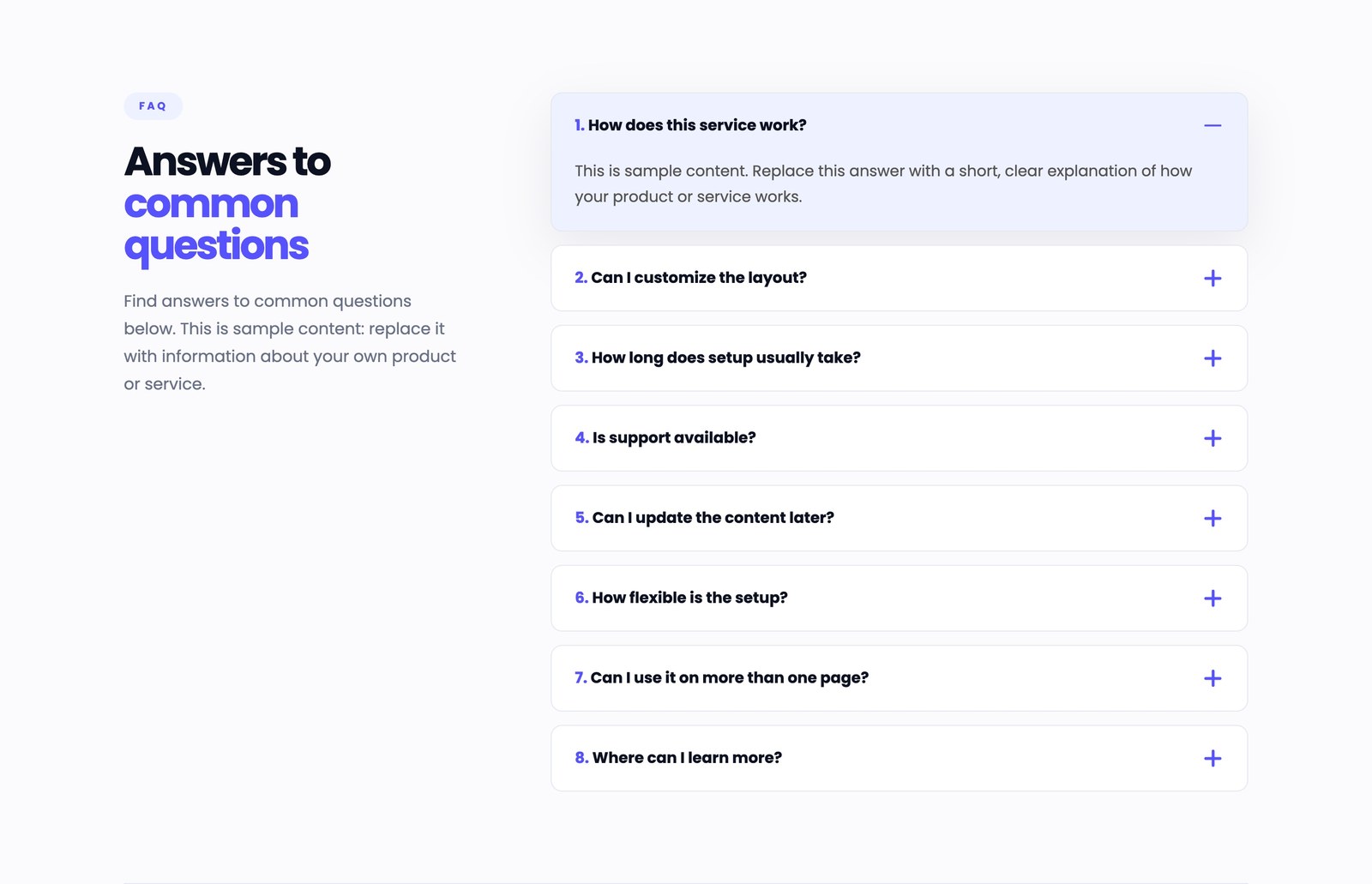
FAQ accordion in the Side layout: introduction on the left and the accordion of questions on the right.
Side layout with optional sticky introduction and interactive FAQ accordion.

Responsive views

Captures of the same module at different screen sizes. The mobile view is a Chrome mobile emulation.
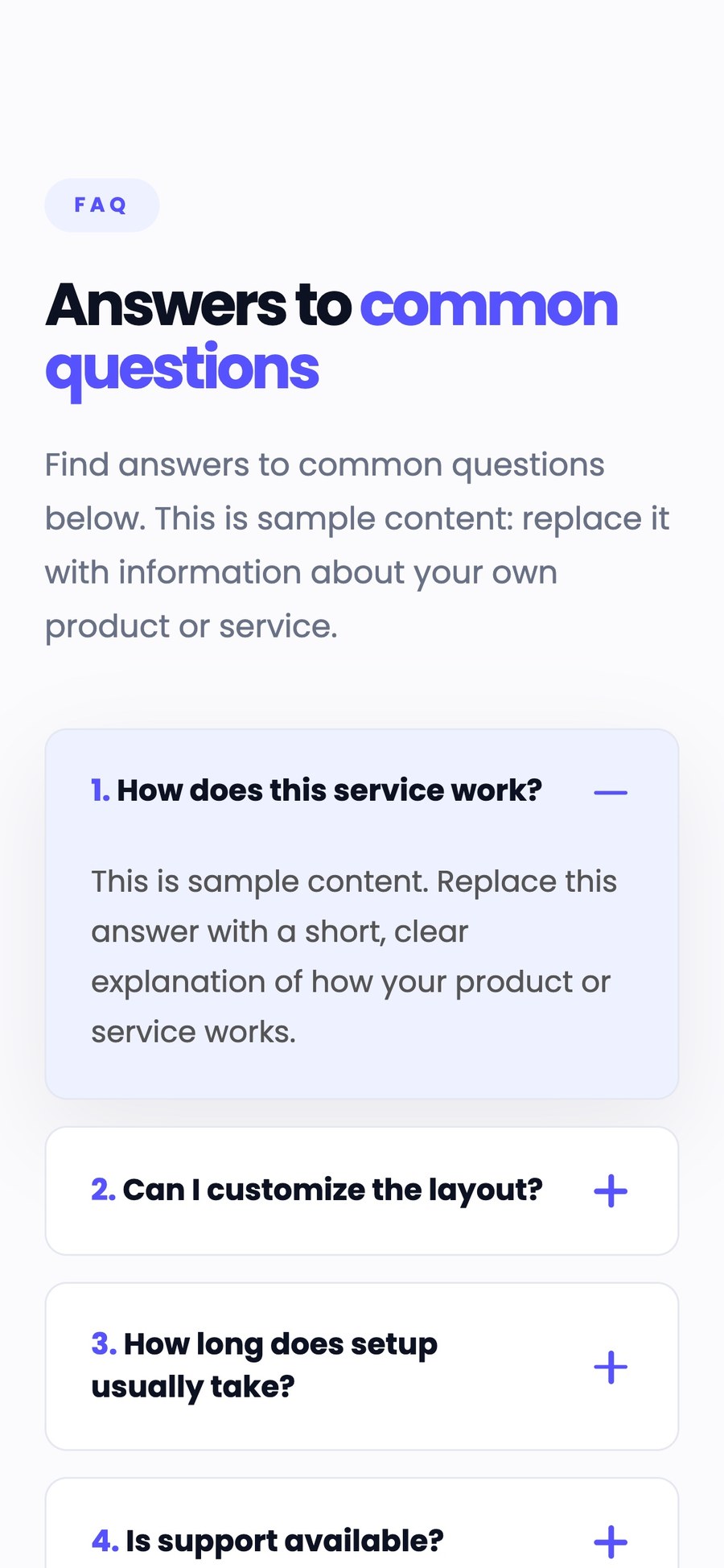
FAQ accordion on a desktop screen in the Side layout.
Desktop view.

Technical details

Compatibility

  • HubSpot CMS: website pages, landing pages, blog posts and blog listing templates.
  • Tested in current Google Chrome on desktop and with Chrome's mobile and tablet emulation. Other browsers are expected to behave the same but were not part of the tests.

Requirements

  • A HubSpot account that can edit pages or templates.
  • No third-party account is needed.

Dependencies

  • None: no external library and no external script.

Notable configuration

  • Side or Top layout.
  • Sticky introduction with an editable top offset (0 to 400 px).
  • 1 to 40 questions; 0 to 30 open on load; optional one-at-a-time mode.

Known limitations

  • Sticky positioning works only in the Side layout and on screens wider than 980 px.
  • A theme that hides overflow around the section can prevent the sticky behavior.
  • Support covers errors in the module only; see the documentation.